
FileAgents
A FileAgent watches one folder on the lab PC and uploads every new file in it to Scifeon. You usually create one FileAgent per instrument, pointing at the folder the instrument saves its results to.
Add a FileAgent
Section titled “Add a FileAgent”Add at least one environment first.
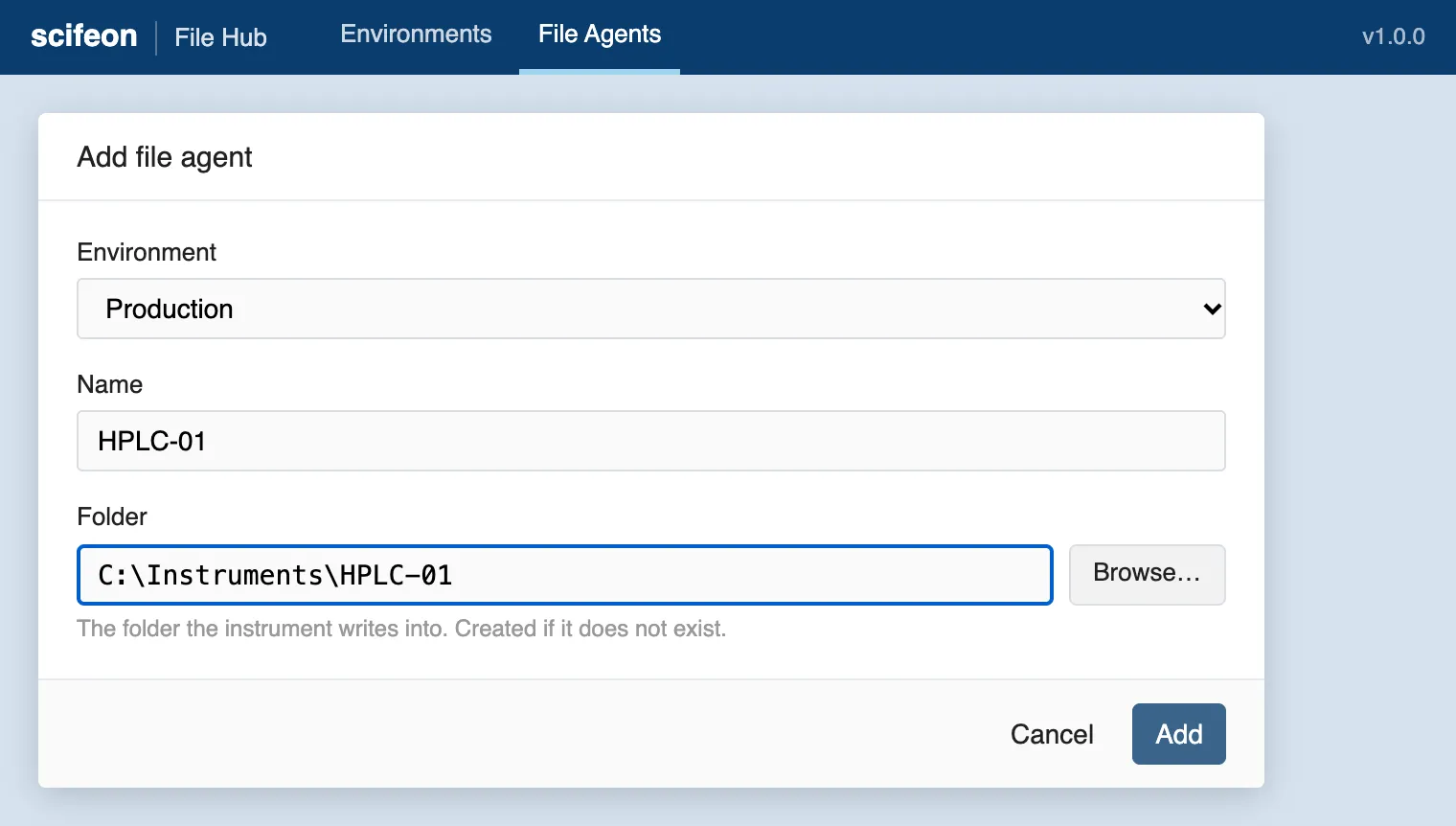
- On the configuration page, open File Agents and click Add file agent.
- Fill in the form:
- Environment: the Scifeon instance the files go to.
- Name: a name for the instrument, for example
HPLC-01. The name identifies the FileAgent in Scifeon and cannot be changed later. - Folder: the folder the instrument writes into, for example
C:\Instruments\HPLC-01. Type the path or click Browse… to pick a folder on the PC. If the folder does not exist, it is created.
- Click Add. The new FileAgent’s page opens.
The FileAgent starts watching the folder right away. In Scifeon, it appears as a device under the File Hub’s hub.
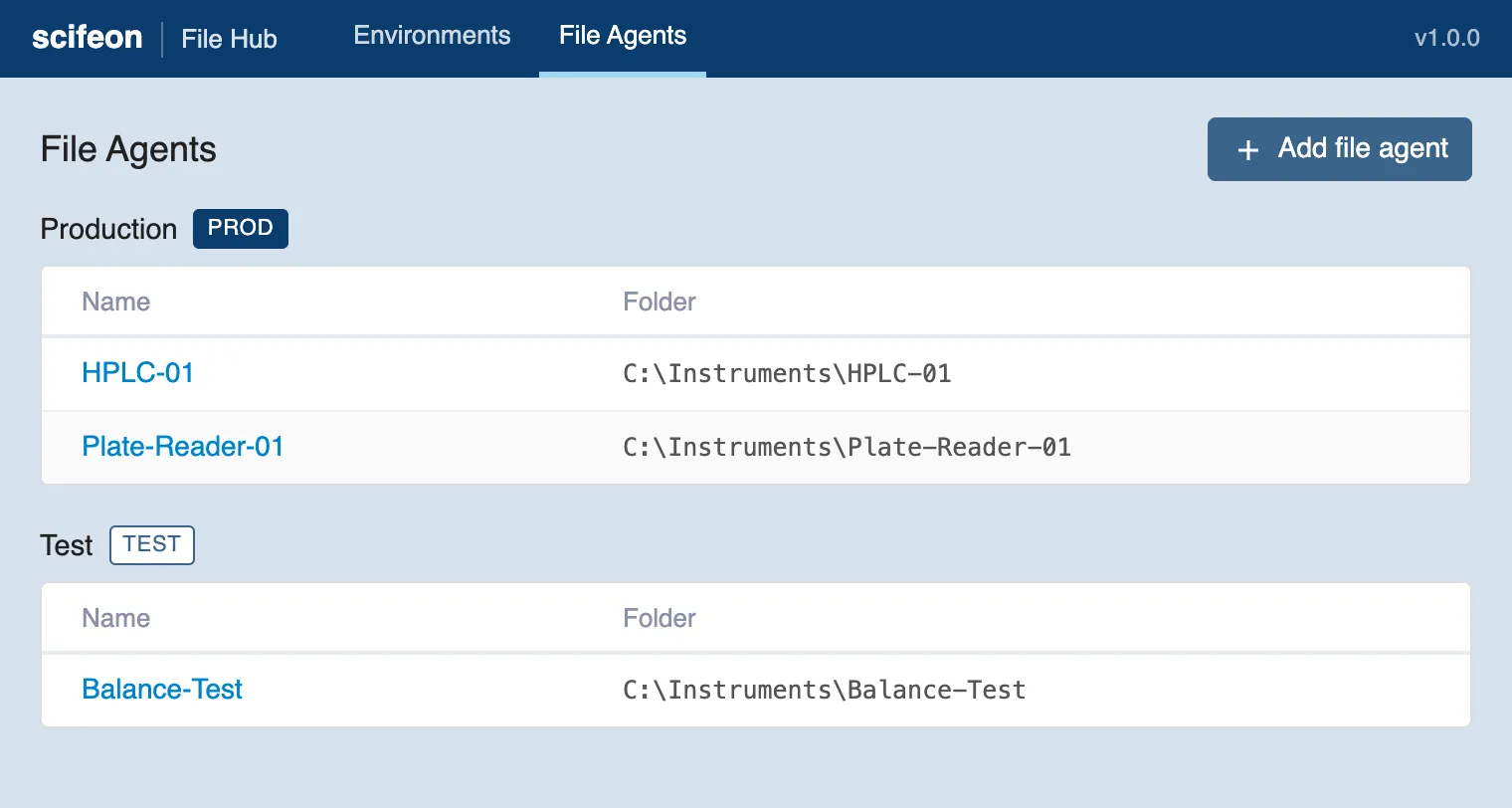
The File Agents page lists all FileAgents, grouped by environment:
Which files are uploaded
Section titled “Which files are uploaded”- Every file that appears in the folder is uploaded, including files in subfolders.
- A file is uploaded only when the instrument has finished writing it. The File Hub waits until the file size has stopped changing for a couple of seconds.
- Temporary files are skipped: files ending in
.tmpor.partial, and Office lock files starting with~$. - Files that were already in the folder before the FileAgent was added are uploaded too.
What happens to the original file
Section titled “What happens to the original file”By default, the File Hub leaves the original file where it is after uploading it.
A FileAgent can instead be set up to move uploaded files into an uploaded subfolder, or to delete them after upload.
Files in the uploaded subfolder are deleted automatically after 30 days by default.
The File Hub only moves or deletes a file after Scifeon has confirmed the upload. A file that has not been uploaded yet, or that has changed since it was uploaded, is never moved or deleted.
These settings, and which files to include or skip, belong to the FileAgent’s configuration in Scifeon. To change them:
- Open the FileAgent from the File Agents page.
- Click Configure in Scifeon. The FileAgent opens as a device in your Scifeon instance, in a new browser tab.
- Change the settings there and save.
The File Hub picks up the new settings the next time it uploads a file or syncs its configuration. To apply them right away, click Refresh config on the Environments page.
Change the folder
Section titled “Change the folder”- Open the FileAgent from the File Agents page.
- Click Edit folder…, enter or browse to the new folder and click Save.
The name cannot be changed. To rename a FileAgent, remove it and add a new one.
Remove a FileAgent
Section titled “Remove a FileAgent”- Open the FileAgent from the File Agents page.
- Click Remove… and confirm.
The FileAgent stops watching the folder and is marked inactive in Scifeon. The folder and the files in it are left untouched.