
Connecting to Scifeon
The File Hub uploads files to one or more Scifeon instances. Each instance is added as an environment on the configuration page.
Step 1: Create an API key in Scifeon
Section titled “Step 1: Create an API key in Scifeon”The File Hub signs in to Scifeon with an API key.
- In Scifeon, go to Administration > Data Access > API Keys.
- Click + API Key and create a key for the File Hub.
- Copy the generated key - you need it in the next step.
Step 2: Add the environment
Section titled “Step 2: Add the environment”- Open the configuration page on the lab PC: open the Start menu and choose Scifeon File Hub. Right after installing, it is already open in your browser.
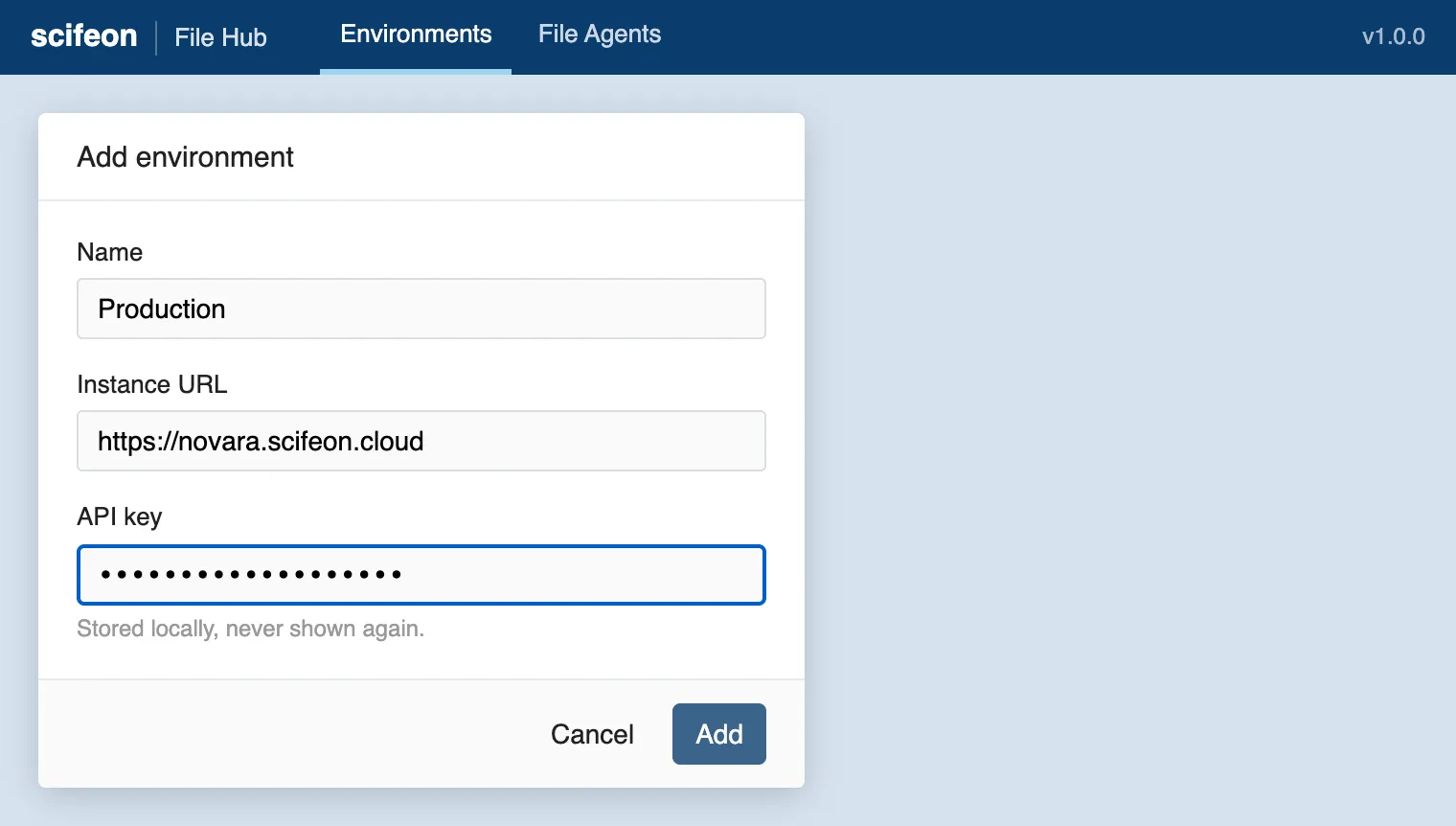
- Click Add environment.
- Fill in the form:
- Name: a name for the environment, for example
Production. The name cannot be changed later. - Instance URL: the address of your Scifeon instance, for example
https://novara.scifeon.cloud. - API key: paste the key from Step 1.
- Name: a name for the environment, for example
- Click Add.
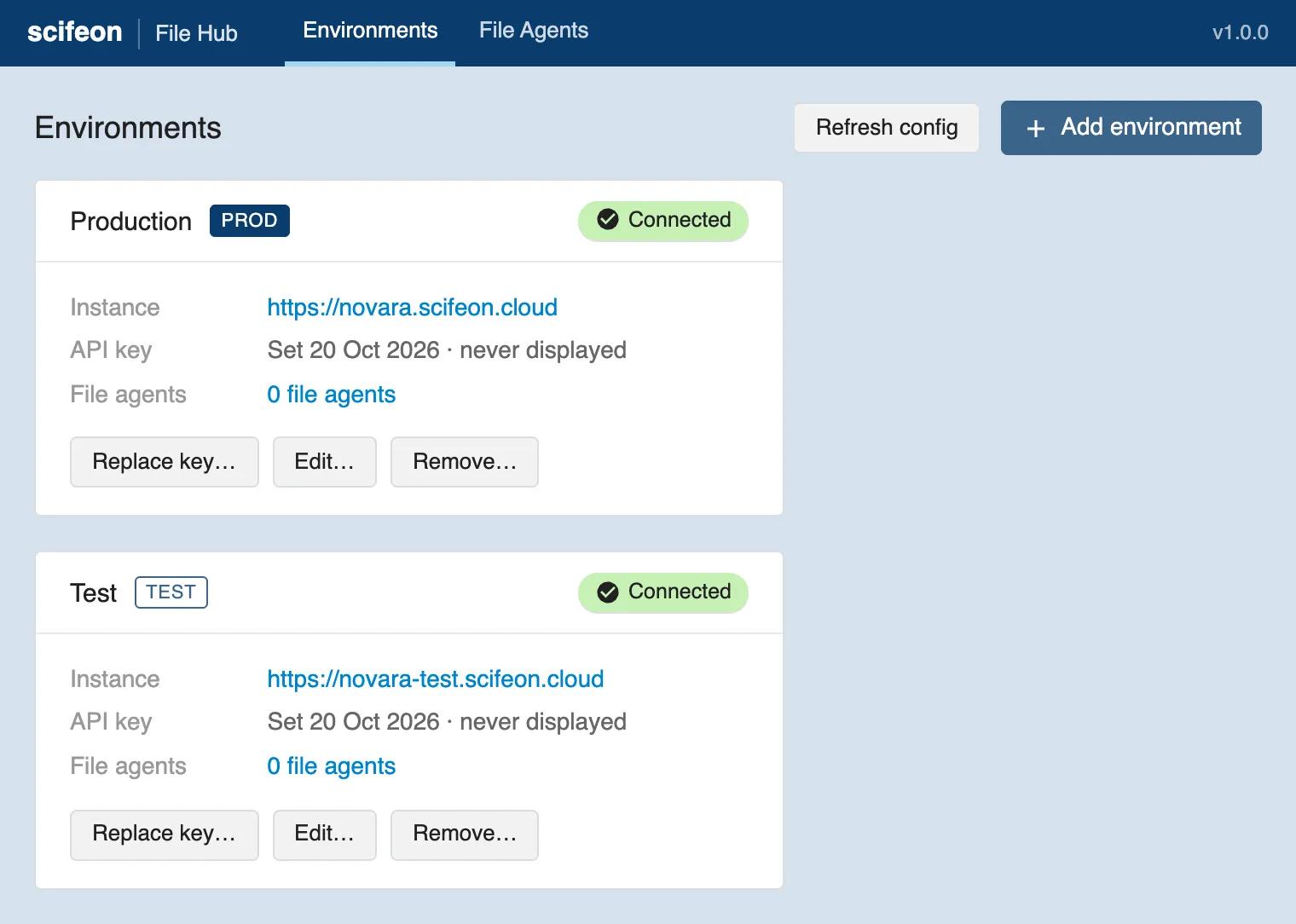
The environment appears on the Environments page. After a moment it shows Connected: the File Hub has reached Scifeon and registered itself there as a hub named after the computer.
Several environments
Section titled “Several environments”One File Hub can upload to several Scifeon instances at the same time, for example a production instance and a test instance. Add each instance as its own environment. Each FileAgent belongs to exactly one environment, so files from one instrument folder always go to the same instance.
Manage an environment
Section titled “Manage an environment”Each environment card has these actions:
| Action | What it does |
|---|---|
| Replace key… | Replaces the API key, for example when the old key has expired or been revoked. |
| Edit… | Changes the instance URL. The name stays the same. |
| Remove… | Removes the environment from this PC. Its FileAgents stop watching their folders. Files that were waiting to be uploaded stay on the PC and are not deleted. |
Refresh config at the top of the page fetches the latest FileAgent settings from Scifeon right away. The File Hub also does this by itself when it starts, when you change a FileAgent, and after uploads, so you rarely need it.
If the environment is not connected
Section titled “If the environment is not connected”If the card does not show Connected, check that:
- The instance URL is correct and starts with
https://. - The API key is valid. Create a new one in Scifeon and use Replace key if in doubt.
- The lab PC can reach the Scifeon instance, for example by opening the instance URL in a browser on the PC.