
Roles & Permissions
This guide explains how Scifeon decides what a user may see and do, and how an administrator sets it up. Access is controlled in four places, which work together:
| What | Controls | Where |
|---|---|---|
| User level | Administrator or regular user | Administration → User Management → Users |
| Roles | Which modules, administration areas and templates a user may manage | Administration → User Management → Roles |
| Data access | Which experiments, samples and other data a user may read or write | Administration → Settings → Security Settings, Organizations and project permissions |
| Procedure and approval settings | Who may review, release, withdraw or work on a procedure or experiment | Administration → Settings → Approval & Review and each procedure’s configuration |
User Levels
Section titled “User Levels”Every user is either a regular user or an administrator.
- Administrator - turned on with the Administrator switch on the user. An administrator has every permission, can change system settings, manage organizations, projects, users and roles, and can always read and write all data.
- Regular user - has the permissions given by their roles, and the data access given by the data access settings below.
Scifeon also ships a built-in Data Manager role. A Data Manager has every permission, but not module access, and can see the audit pages under Administration → Data. Use it for the people who maintain templates, the data model and configurations without making them administrators.
Administrators are not exempt from the access rules set on a procedure, described at the end of this guide.
A role is a named set of permissions. Open Administration → User Management → Roles to see the roles in the system.
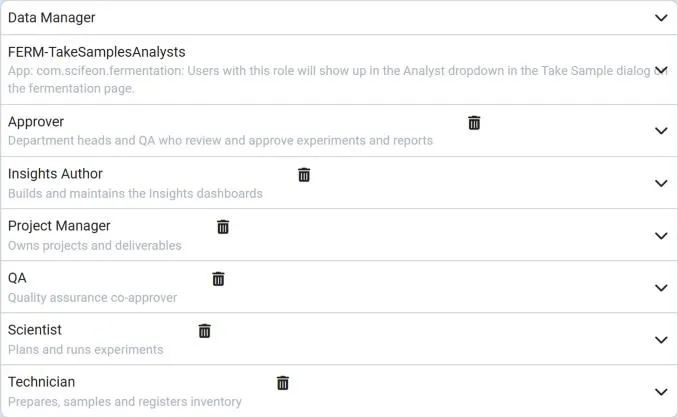
Creating a role
Section titled “Creating a role”- Click New Role.
- Enter a unique Role ID, a Role Name and, optionally, a Role Description.
- Click Save.
- Open the role and switch on the permissions and modules it should give.
Changes to a role’s permissions take effect for every user who has the role.
Assigning a role
Section titled “Assigning a role”A role can be assigned to:
- Users - under Assigned Users on the role, or with Assign role on the user.
- Departments - under Assigned Departments on the role. Every active member of the department then has the role.
A user can have several roles. Their effective permissions are all the permissions of all their roles combined: a permission is never taken away by another role.
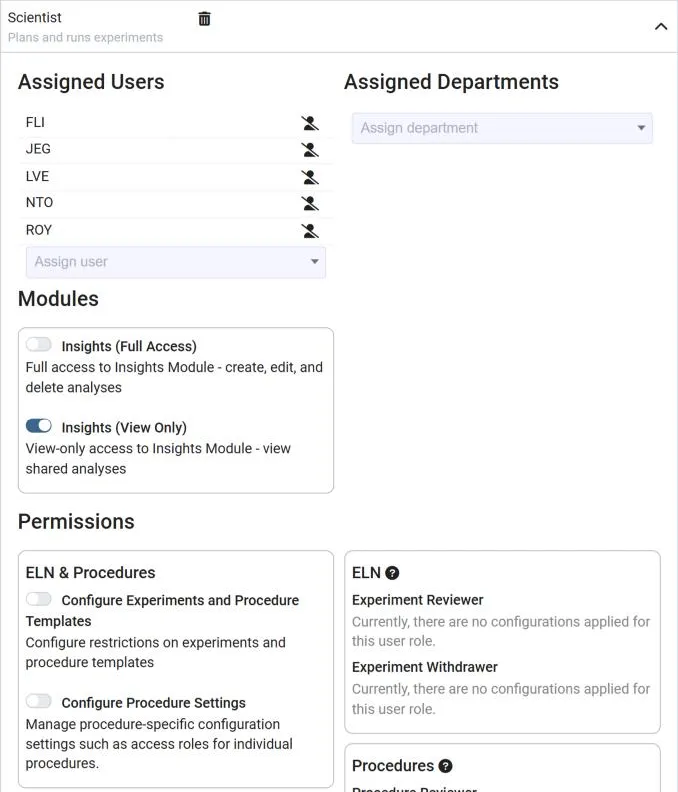
The role page shows, from top to bottom:
- Assigned Users and Assigned Departments.
- Modules - access to separately licensed modules, see below.
- Permissions - the permissions in the next section.
- ELN and Procedures - where the role is used in approval and procedure settings. This is read-only here; it is changed in those settings.
- Pages - administration pages that the role gives access to.
Permissions
Section titled “Permissions”Permissions are for the people who set up and maintain the system rather than for day-to-day lab work. They decide who may change shared configuration: templates, the data model, procedure settings, dashboards and documentation. Recording experiments, samples and results needs no permission; that is governed by data access and the procedure and approval settings further down.
The permissions are grouped by the area they cover. Each one is described on the role page, and installed apps can add more. Some examples:
| Permission | Meant for |
|---|---|
| Configure Procedure Settings | Lab leads who maintain a procedure’s own configuration, such as which roles may work on it. See Configuring Procedures. |
| Manage Field Catalog | People who define the shared form fields and result types in the Field Catalog. |
| Manage Report Templates | People who design the reports generated from experiments and other data. |
| Audit Trails & Events | QA and auditors who need Audit Events and Audit Trail under Administration → Data. |
| Create Projects | Project managers who set up new projects. |
Modules
Section titled “Modules”Modules are separately licensed parts of Scifeon, such as Insights or the AI Assistant. Module access decides who can open a module at all. It is the way to give a module to the people who need it, for example full Insights access to the people who build analyses and view-only access to those who read them.
Only the modules installed in your system are listed on the role page. Module access is not included in the Data Manager role, so a Data Manager needs a role with the module like everyone else. Administrators always have access.
Data Access
Section titled “Data Access”Data in Scifeon always belongs to a user and to that user’s organization (department), and can also belong to a project. Whether other users can read or write it depends on the system’s data access mode, set by an administrator under Administration → Settings → Security Settings → Data Access.
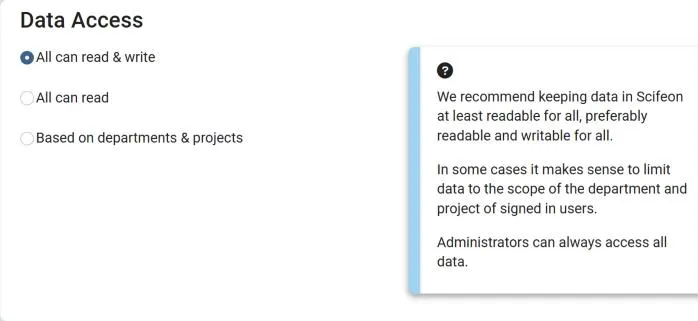
| Mode | Effect |
|---|---|
| All can read & write | Everybody can read and write all data. |
| All can read | Everybody can read all data, but writing requires write access to the department or project the data belongs to. |
| Based on departments & projects | Reading requires read access, and writing requires write access, to the department or project the data belongs to. |
We recommend keeping data at least readable for all. Administrators can always read and write all data.
Department access
Section titled “Department access”A user always has access to the data of their own department. To give access to other departments’ data, open Administration → User Management → Organizations, select the organization that owns the data, and use Add User or Organization under Access Control. Choose a user or another organization and whether they get Read or Write access.
Organizations can also be grouped into data scopes, which hide other parts of the organization from day-to-day lists without changing who has access. See Managing Organizations.
Project access
Section titled “Project access”On the Projects page, the Manage permissions action on a project lets you assign users and departments to the project with Read or Write access. The project’s data is then available to them under the data access mode above.
Procedure and Approval Settings
Section titled “Procedure and Approval Settings”Who may review, approve, sign, withdraw and release is not set with permissions on a role. It is set in the approval and procedure settings, which name roles and individual users:
- Approval & Review - who may approve and withdraw approvals on experiments, per department and experiment type. See Approvals.
- Procedure configuration - who may release versions, edit templates, create and edit experiments, and act as scientist or analyst on a given procedure. See Controlling Who May Work on a Procedure.
These fields accept both roles and individual users. When a field is left empty, everybody may act; once it is filled in, only the named roles and users may. On a procedure this applies to administrators as well.
The ELN and Procedures sections of a role list every configuration that uses the role, so you can check what removing a user from a role will affect.
When Require Approval Signature is turned on, a user who is allowed to approve, reject, review or withdraw must also confirm the action with a two-factor signature. See Two-factor signature.
Provisioning and Audit
Section titled “Provisioning and Audit”- SCIM - when users are provisioned from Microsoft Entra ID, Entra groups can be mapped to Scifeon roles, so role membership follows group membership. See SCIM Provisioning.
- Audit - assigning and revoking roles, and adding and removing permissions on a role, are recorded as audit events. They are listed under Administration → Data → Audit Events, which requires the Audit Trails & Events permission.
Example Setup
Section titled “Example Setup”A typical laboratory setup uses a small number of roles:
| Role | Permissions and modules | Named in |
|---|---|---|
| Scientist | None, or Insights (View Only) | Procedure configuration as scientist, and experiment creator and editor |
| Reviewer | None | Approval & Review as reviewer; procedure configuration as template reviewer |
| QA | Audit Trails & Events | Approval & Review as reviewer and withdrawer; procedure configuration as releaser |
| Configurator | Configure Procedure Settings, Manage Field Catalog, the Templates permissions | Procedure configuration as template editor |
Assign roles to departments where everyone in the department should have them, and to individual users where only some people should.