
Monitoring uploads
The tray icon
Section titled “The tray icon”When a user is signed in to Windows, the File Hub shows a round icon in the notification area of the taskbar. Its colour shows the overall state:
| Colour | Meaning |
|---|---|
| Green | Every environment is connected and every FileAgent is watching its folder. |
| Amber | Something needs attention: an environment is not connected, a FileAgent is blocked, or uploads have failed. Hover over the icon to see what. |
| Grey | The File Hub service is not running or cannot be reached. |
Double-click the icon, or right-click it and choose Open configuration, to open the configuration page.
A FileAgent’s upload log
Section titled “A FileAgent’s upload log”Open a FileAgent from the File Agents page to see its uploads. The page refreshes by itself every few seconds.
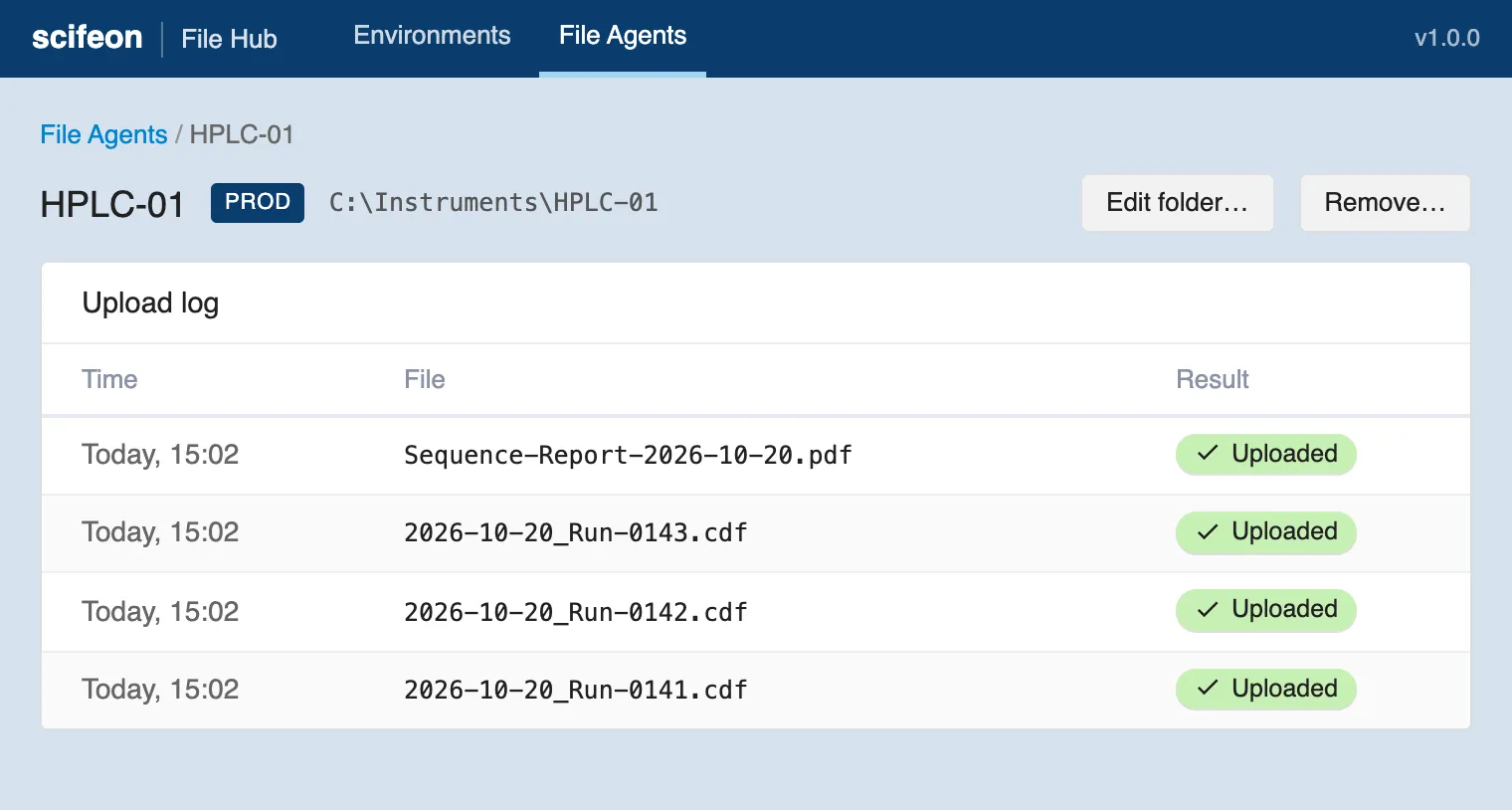
The page has up to three sections:
- Upload log: the most recent files and whether each was uploaded.
- Queue: files waiting to be uploaded. Shown only when there are any.
- Failed uploads: files Scifeon refused. Shown only when there are any.
When Scifeon or the network is unavailable
Section titled “When Scifeon or the network is unavailable”If Scifeon cannot be reached, for example because the network is down, the file stays in the Queue. The File Hub tries again automatically, waiting a little longer after each attempt. The Next retry column shows when the next attempt is due, and Retry now tries again immediately.
Queued files are stored safely on the PC, so they are uploaded once the connection is back, even if the PC restarts in the meantime.
Failed uploads
Section titled “Failed uploads”If Scifeon refuses a file, it is moved to Failed uploads together with the reason. The File Hub does not retry these files by itself, because trying again usually gives the same result until the cause is fixed.
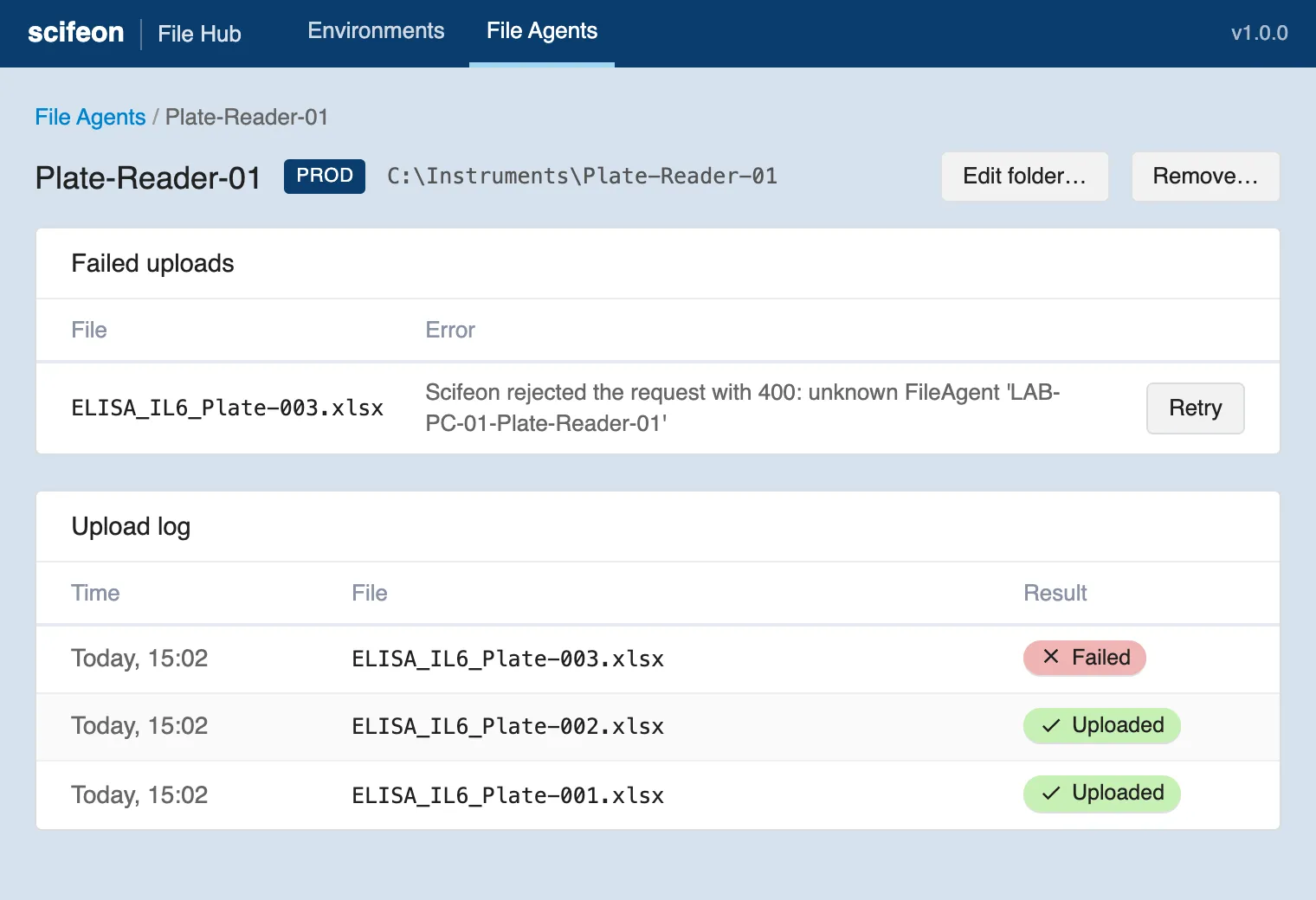
To resolve a failed upload:
- Read the Error column to find the cause, for example a FileAgent that is no longer known in Scifeon.
- Fix the cause.
- Click Retry to upload the file again.
Failed files are kept on the PC until they are uploaded; they are never deleted silently.