Watched folders
A watched folder is a folder on the lab PC that the File Hub watches: it uploads every new file in it to Scifeon. You usually add one watched folder per instrument: the folder the instrument saves its results to. In Scifeon, each watched folder is a Hub Device of type FileAgent.
Add a watched folder
Section titled “Add a watched folder”Add at least one environment first.
- On the configuration page, open Watched Folders and click Add Watched Folder.
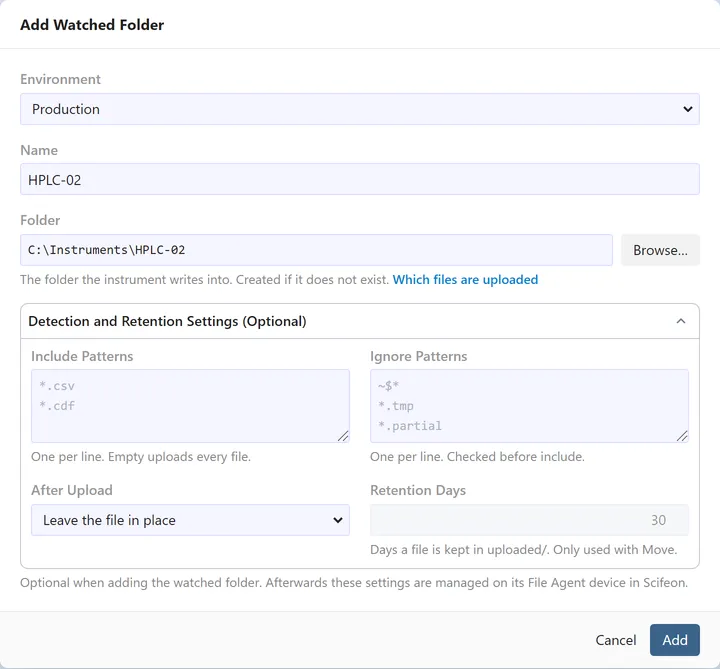
- Fill in the form:
- Environment: the Scifeon instance the files go to.
- Name: a name for the instrument, for example
HPLC-01. The name identifies the watched folder in Scifeon and cannot be changed later. - Folder: the folder the instrument writes into, for example
C:\Instruments\HPLC-01. Type the path or click Browse… to pick a folder on the PC. If the folder does not exist, it is created. For a folder on a network share, type the full network path, such as\\fileserver\Instruments\HPLC-01; see Instruments that save to a file server.
- Optionally, open Detection and Retention Settings (Optional) to choose which files are uploaded and what happens to the original file. See Settings when you add a watched folder.
- Click Add. The new watched folder’s page opens.
The File Hub starts watching the folder right away. In Scifeon, it appears as a device under the File Hub’s hub.
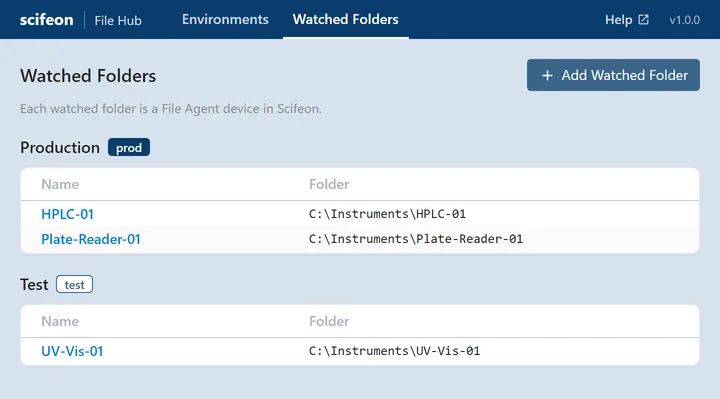
The Watched Folders page lists all watched folders, grouped by environment:
Which files are uploaded
Section titled “Which files are uploaded”- Every file that appears in the folder is uploaded, including files in subfolders.
- A file is uploaded only when the instrument has finished writing it. The File Hub waits until the file size has stopped changing for a couple of seconds.
- Temporary files are skipped: files ending in
.tmpor.partial, and Office lock files starting with~$. - Files that were already in the folder before the watched folder was added are uploaded too.
What happens to the original file
Section titled “What happens to the original file”By default, the File Hub leaves the original file where it is after uploading it.
A watched folder can instead be set up to move uploaded files into an uploaded subfolder, or to delete them after upload.
Files in the uploaded subfolder are deleted automatically after 30 days by default.
The File Hub only moves or deletes a file after Scifeon has confirmed the upload. A file that has not been uploaded yet, or that has changed since it was uploaded, is never moved or deleted.
Settings when you add a watched folder
Section titled “Settings when you add a watched folder”When you add a watched folder, Detection and Retention Settings (Optional) sets which files are uploaded and what happens to the original file. If you leave the section closed, the watched folder gets the defaults described above.
| Setting | What it does |
|---|---|
| Include Patterns | Which files to upload, one pattern per line, for example *.csv. Empty uploads every file. |
| Ignore Patterns | Which files to skip, one pattern per line. Checked before Include Patterns. Empty skips the temporary files listed under Which files are uploaded; patterns you enter replace that list. |
| After Upload | Leave the file in place, Move to the uploaded/ archive or Delete the file. |
| Retention Days | How many days a file is kept in the uploaded subfolder. Only used with Move. |
Change the settings
Section titled “Change the settings”After the watched folder has been added, its settings belong to its File Agent device in Scifeon. To change them:
- Open the watched folder from the Watched Folders page.
- Click Configure in Scifeon. Its File Agent device opens in your Scifeon instance, in a new browser tab.
- Change the settings there and save.
The File Hub picks up the new settings the next time it uploads a file or syncs its configuration. To apply them right away, click Refresh Config on the Environments page.
Change the folder
Section titled “Change the folder”- Open the watched folder from the Watched Folders page.
- Click Edit Folder…, enter or browse to the new folder and click Save.
The name cannot be changed. To rename a watched folder, remove it and add a new one.
Remove a watched folder
Section titled “Remove a watched folder”- Open the watched folder from the Watched Folders page.
- Click Remove… and confirm.
The File Hub stops watching the folder, and its device is marked inactive in Scifeon. The folder and the files in it are left untouched.