
Report Designer
The Report Designer is where you build report templates. A report template describes what a PDF report looks like: the title page, the header and footer on every page, headings, text, tables, and where data from Scifeon is filled in. Users then pick the template when they export a report, for example from an experiment, and Scifeon fills it with the data of that experiment.
You do not need any technical knowledge to build a template. You build it from blocks, the same way you would build a slide from text boxes and tables.
This page covers:
- Creating a report template and finding your way around the designer
- How blocks are organised: header, report content and footer, sections and columns
- Each type of block and its settings
- Filling in data from Scifeon with variables
- Repeating a block for every item in a list, for example every experiment step
- Showing or hiding a block depending on the data, for example a “draft” warning
- Previewing the result and generating the report
Throughout this page, the screenshots show one example template: a Fermentation campaign report for the fictional company Novara Bio. The report is generated from a fermentation experiment, here the 50 L pilot batch USP26005. It has a title page with a summary and a status box, a draft warning that only shows when the experiment is not yet approved, a table of contents, one page per experiment step with a sign-off table, and a list of attached files on a landscape page.
Before you start
Section titled “Before you start”You need the Manage Report Templates permission to see and edit report templates.
Report templates are found on the Administration page under Templates > Report Templates.
Report templates
Section titled “Report templates”The Report Templates page lists all report templates with their report type, who last changed them and when.
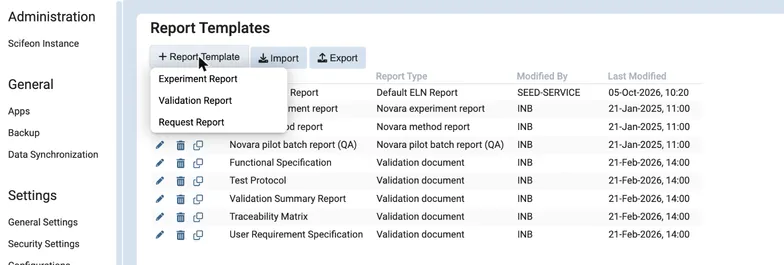
The Report Templates page. The + Report Template menu lists the report types you can create a template for.
From this page you can:
- Click + Report Template and choose a report type to create a new template.
- Click the pencil icon on a row to open a template in the designer.
- Click the copy icon to clone a template, for example to try out changes without affecting the original.
- Click the bin icon to delete a template.
- Use Export and Import to move templates between Scifeon instances.
Report types
Section titled “Report types”The report type decides two things: where users can generate the report, and which data the report can use.
| Report type | Where users generate it | Data available |
|---|---|---|
| Experiment Report | Export PDF on an experiment in the ELN | The experiment, its steps, comments and attached files |
| Validation Report | The Validation module | Requirements, specifications, test cases and test results |
| Request Report | A request, from its page or from the request inbox | The request and its data |
The list of report types depends on which apps are installed in your Scifeon instance. You choose the report type when you create the template, and it cannot be changed afterwards.
A new template gets a default name such as “Experiment Report 1”. To rename it, click the name at the top left of the designer, type the new name and click Save.
The designer at a glance
Section titled “The designer at a glance”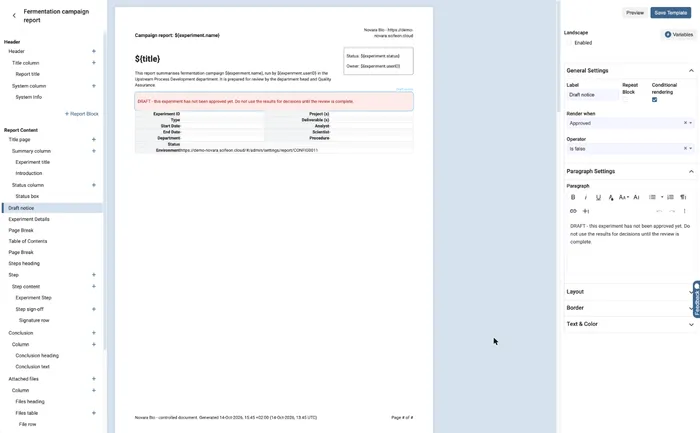
The Report Designer with the “Draft notice” block selected.
The designer has three areas:
- Navigator (left): the structure of the report as a tree of blocks. This is where you add, select, move and delete blocks.
- Page preview (middle): a live preview of the pages. It updates as soon as you change something. Click a block in the preview to select it. The selected block has a blue frame and its label is shown above it.
- Settings panel (right): the settings of the selected block, plus the Landscape switch for the whole report and the Variables button.
At the top right are the buttons:
| Button | What it does |
|---|---|
| Cancel | Shown when you have unsaved changes. Throws away all changes since the last save. |
| Preview | Builds a real PDF from the template so you can check page breaks, headers and footers. See Previewing the template. |
| Save Template | Saves the template. Users get the new version the next time they generate a report. |
Changes are not saved automatically. A yellow line on the left edge of the preview reminds you that there are unsaved changes. If you leave the designer with unsaved changes, Scifeon asks whether to save or discard them.
How a report is organised
Section titled “How a report is organised”Header, Report Content and Footer
Section titled “Header, Report Content and Footer”The navigator has three parts:
- Header: blocks shown at the top of every page, for example the report title and the company name.
- Report Content: the actual content of the report, page after page.
- Footer: blocks shown at the bottom of every page, for example the generation time and the page number.
Scifeon makes room for the header and footer automatically, so they never overlap the content, however tall they are.
The block tree
Section titled “The block tree”Inside each part, blocks are shown as a tree. Blocks that sit inside another block are indented below it, just like folders and files.
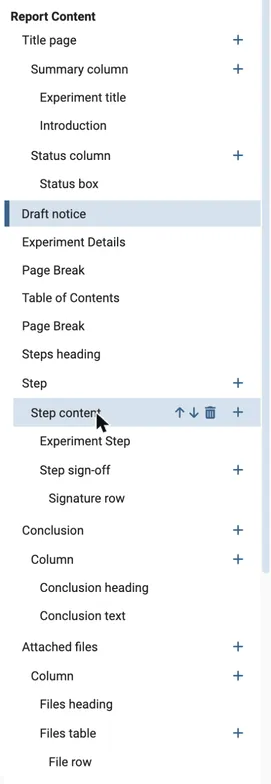
The Report Content part of the example template. Hovering over a block shows its buttons.
| In the navigator | What it does |
|---|---|
| Click a block name | Selects the block and shows its settings on the right. The preview scrolls to the block. |
| ↑ and ↓ | Move the block up or down among the blocks at the same level. |
| Bin icon | Deletes the block and everything inside it. There is no confirmation, but you can click Cancel to undo all unsaved changes. |
| + | Adds a block inside this block. Only shown on blocks that can hold other blocks. |
| + Report Block | Adds a block at the bottom of that part of the report. |
The name shown in the navigator is the block’s label. Give every block a meaningful label, such as “Draft notice” or “Status box”, so you can find your way in large templates. The label is only used in the designer and is never printed in the report.
Adding blocks
Section titled “Adding blocks”Click + Report Block under a part, or + on a column, and choose the type of block.
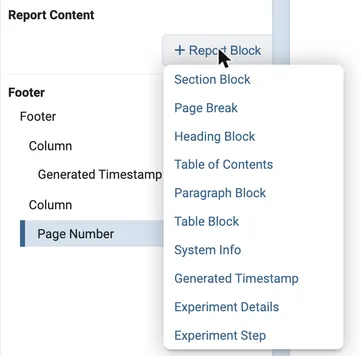
Blocks you can add to the report content of an Experiment Report.
Not every block can be placed everywhere. The menu only lists the blocks that are allowed in that spot:
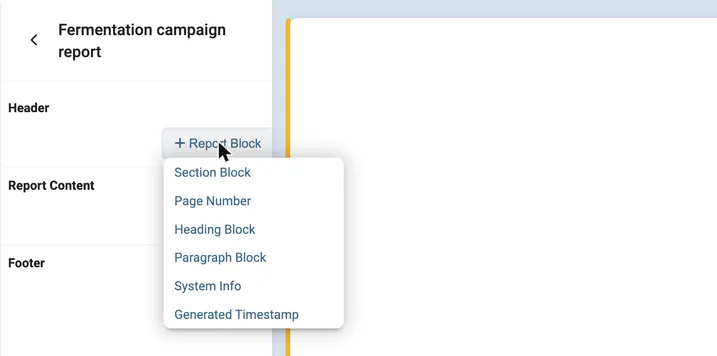
In the header and footer you can add sections, page numbers, headings, paragraphs, system info and timestamps. Tables, tables of contents and page breaks are not available there.
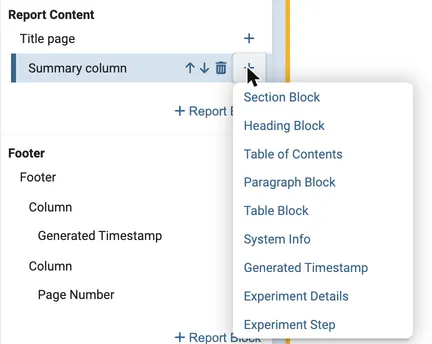
Inside a column you can add everything except a page break.
A new block is added at the bottom and selected straight away, so you can fill in its settings.
Sections and columns
Section titled “Sections and columns”Section blocks and column blocks are used to place things side by side.
- A section is a row across the page.
- A section is split into one or more columns.
- The other blocks, such as headings, paragraphs and tables, go inside the columns.
To add a column, click + on the section. Then click + on the column to add content to it.
In the example template, the title page is a section with two columns: a wide “Summary column” with the experiment title and introduction, and a narrow “Status column” with a framed status box.
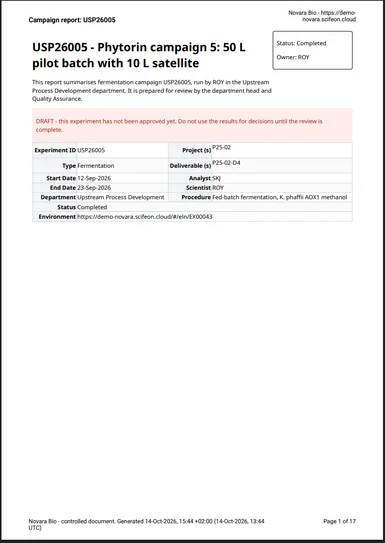
The title page of the generated report. The section has a summary column of size 3 and a status column of size 1.
Column size
Section titled “Column size”Each column has a Column Size setting. The sizes are relative to each other:
- Two columns of size 1 each take half of the width.
- A column of size 3 next to a column of size 1 takes three quarters, and the other column takes one quarter.
The header and footer of the example use the same idea: the title and the generation time get the wide column, and the company name and page number get the narrow column.
Page orientation of a section
Section titled “Page orientation of a section”Sections in the report content have a Page Orientation setting. Choose Landscape for wide content, such as a table with many columns.
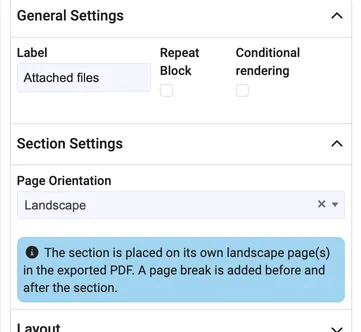
The section is then placed on its own landscape page or pages, with a page break before and after it. The rest of the report keeps its normal orientation. Leave the setting empty to use the orientation of the report.
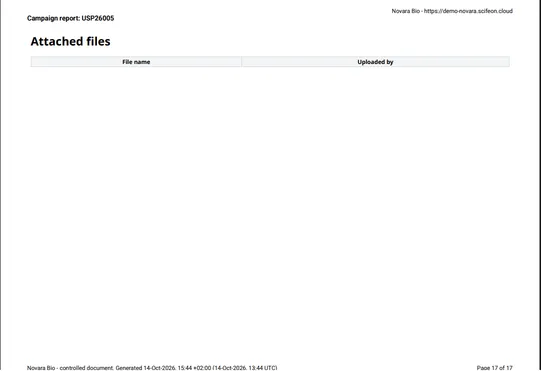
The “Attached files” section on a landscape page. This experiment has no attached files, so the table only shows its column headers.
To make the whole report landscape, switch on Landscape at the top of the settings panel instead.
Configuring blocks
Section titled “Configuring blocks”Select a block to see its settings on the right. The settings are grouped in panels that you can open and close:
- General Settings: available for every block. Here you set the label, and switch on repeating and conditional rendering.
- Settings for the block type, for example Heading Block Settings or Column Settings. These are described per block type below.
- Layout, Border and Text & Color: styling, available for every block except page breaks and table rows.
Layout, border, text and color
Section titled “Layout, border, text and color”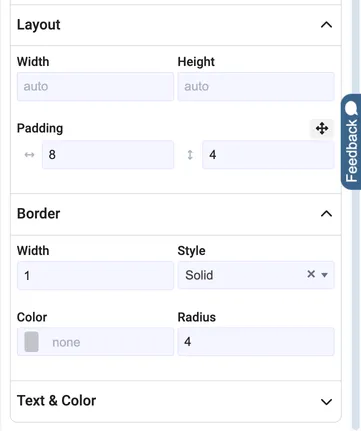
The status box in the example has padding of 8 left and right and 4 top and bottom, and a solid border of width 1 with rounded corners.
| Setting | What it does |
|---|---|
| Width, Height | The size of the block. Leave empty for automatic size. |
| Padding | Space between the edge of the block and its content. The first field is left and right, the second is top and bottom. Click the arrows icon to set all four sides separately. |
| Border: Width, Style, Color, Radius | A frame around the block. Radius rounds the corners. |
| Fill | Background color of the block. Not available in the header and footer. |
| Text Color | Color of the text. |
| Text Align | Left, centered or right aligned text. |
Plain numbers are in pixels.
You can also type other CSS units, such as 50% for half the width or 10mm.
The “Draft notice” in the example uses a light red Fill and a dark red Text Color to stand out. The page number and company name in the header and footer use Text Align right.
Block types
Section titled “Block types”Heading
Section titled “Heading”A title. Set the text under Heading and the size under Size: Heading 1 (largest), Heading 2 or Heading 3. Headings are also what the table of contents is built from.
Paragraph
Section titled “Paragraph”Formatted text, written in a text editor with bold, italics, lists, links and so on.
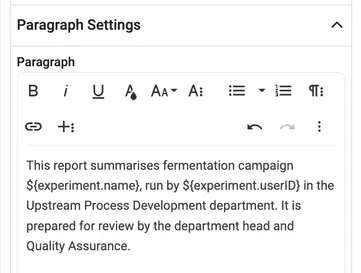
The introduction paragraph of the example. The parts in ${...} are replaced by data from the experiment, see Filling in data.
A table with a header row and any number of rows.
- Select the table and use + under Table column headers to add the column headers. Click the pencil to edit a header, and - to remove it.
- Click + on the table in the navigator to add a row. Select the row and use + under Table cells to add its cells, one per column.
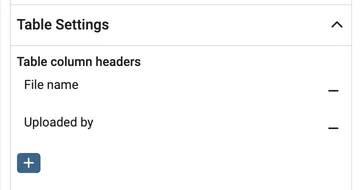
A row can be repeated, so one row in the template becomes one row per item in the report. The “Files table” in the example has a single row that is repeated for every attached file.
Table of contents
Section titled “Table of contents”Lists the headings of the report with their page numbers. Set the Title of the table of contents and the Max heading level: only Heading 1, Heading 1 and 2, or all three levels.
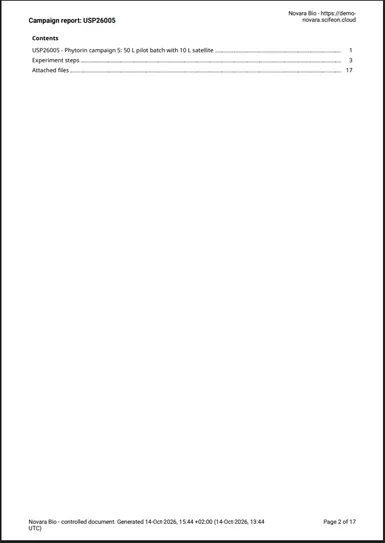
The table of contents only lists headings added with Heading blocks. Titles produced by other blocks, such as the step titles of the Experiment Step block, are not included.
Page break
Section titled “Page break”Starts a new page. In the example, page breaks put the table of contents on a page of its own. A page break can only be added directly in the report content, not inside a section or column.
System info
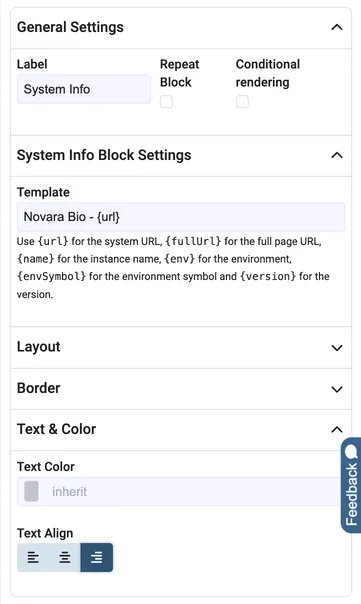
Section titled “System info”Prints information about the Scifeon instance. Type a Template with any text and these placeholders:
| Placeholder | Is replaced by |
|---|---|
{url} | The address of the Scifeon instance |
{fullUrl} | The full address of the page the report was generated from |
{name} | The name of the instance |
{env} | The environment, for example production or test |
{envSymbol} | The symbol of the environment |
{version} | The Scifeon version |
Generated timestamp
Section titled “Generated timestamp”Prints when the report was generated.
Use {local} for the local time with time zone, and {utc} for the time in UTC.
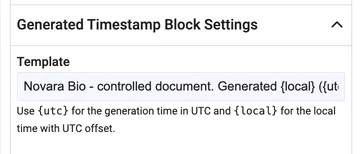
The example footer uses “Novara Bio - controlled document. Generated {local} ({utc})”.
Page number
Section titled “Page number”Prints the page number.
Only available in the header and footer.
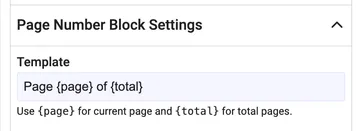
Use {page} for the current page and {total} for the total number of pages, for example “Page {page} of {total}”.
Blocks for a specific report type
Section titled “Blocks for a specific report type”Some report types add their own blocks. For the Experiment Report type, these are:
- Experiment Details: a table with the experiment ID, type, project, deliverable, dates, analyst, scientist, department, procedure and status.
- Experiment Step: the full content of an experiment step, including its comments, protocol, forms and results. It must be placed inside a block that repeats for the List of experiment steps with the accessor
step, as in the example.
Filling in data with variables
Section titled “Filling in data with variables”Variables are placeholders for data.
When the report is generated, each variable is replaced by the actual value.
A variable is written as ${...}, for example ${experiment.name} for the name of the experiment.
You can use variables in all text you type in a block: headings, paragraphs, table headers and table cells.
Finding the right variable
Section titled “Finding the right variable”Select a block and click Variables at the top of the settings panel. The list shows every variable you can use in that block, with a description and the type of data.
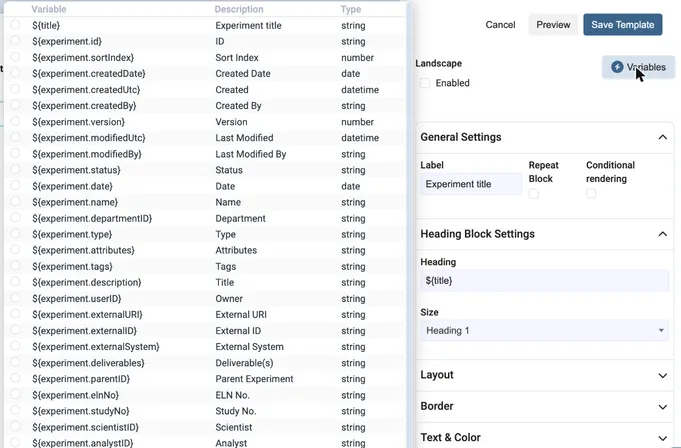
Click a variable to copy it. Then paste it into the text of the block.
The list depends on the report type and on where the block is.
Inside a repeated block, the list also contains the variables of the repeated item, for example ${step.title}.
Variables in the designer and in the report
Section titled “Variables in the designer and in the report”The designer always shows the variables themselves, such as ${title}, because there is no experiment yet.
The values are filled in when a user generates the report.
The same title page as in the designer, now with the data of experiment USP26005. ${title} became “USP26005 - Phytorin campaign 5: 50 L pilot batch with 10 L satellite”, and ${experiment.status} became “Completed”.
Repeating blocks
Section titled “Repeating blocks”Some data is a list, for example the steps of an experiment or its attached files. A repeated block is printed once for every item in the list.
To repeat a block:
- Select the block and switch on Repeat Block under General Settings.
- Under Repeat for, choose the list.
- Check the Accessor. This is the name you use in variables to refer to the current item. Scifeon suggests a name, such as
stepfor experiment steps orfilefor attached files. - Optionally switch on Break Page to start every item on a new page.
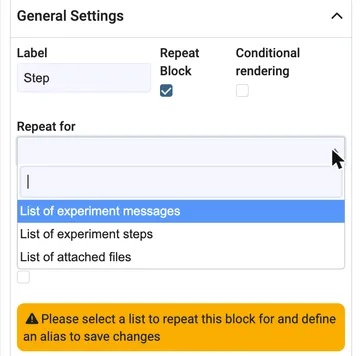
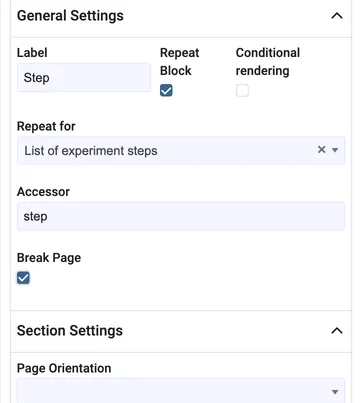
The “Step” section of the example is repeated for every experiment step, with a page break after each step.
Inside the repeated block, use the accessor in variables, for example ${file.name} in a repeated table row for the attached files.
Everything inside a repeated block is repeated with it.
In the example, the “Step” section contains the Experiment Step block and a sign-off table, so every step gets its own pages with its content and an empty sign-off row.
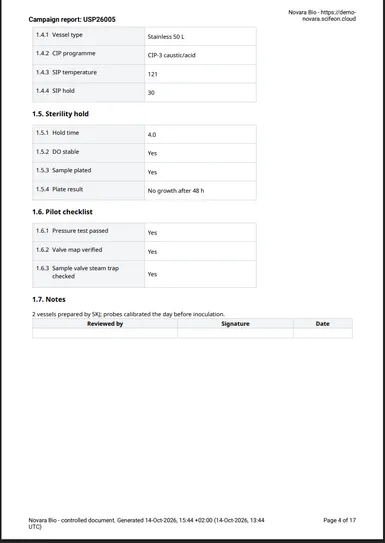
The end of step 1 in the generated report, with the sign-off table from the template.
You can repeat any block: a section, a single heading, or a table row. Repeating a table row gives one row per item, which is the easiest way to list items in a table.
You can also repeat a block inside another repeated block. For example, inside the repeated “Step” section, the Repeat for list also offers List of step messages, so a table row could list the comments of each step.
Break Page is only available for blocks placed directly in the report content.
The designer shows a repeated block only once, because there is no data yet.
Showing or hiding blocks
Section titled “Showing or hiding blocks”A block can be shown only when the data meets a condition. In the example, the “Draft notice” is only printed when the experiment has not been approved.
To add a condition:
- Select the block and switch on Conditional rendering under General Settings.
- Under Render when, choose the variable to check.
- Choose an Operator.
- If the operator needs one, enter a Value to compare with.
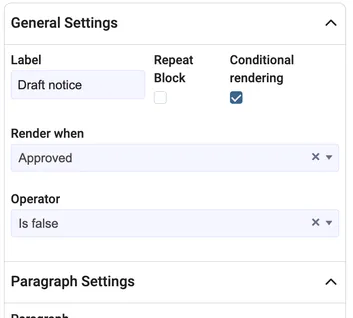
The “Draft notice” is shown when the experiment’s “Approved” field is false.
The operators depend on the type of data:
| Type of data | Operators |
|---|---|
| Yes/no | Is true, Is false |
| Text | Equals, Not equals, Contains, Starts with, Ends with, Is empty, Is not empty |
| Numbers and dates | Greater than, Greater than or equal, Less than, Less than or equal, Equals, Not equals, Is empty, Is not empty |
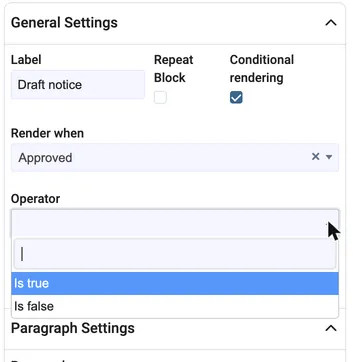
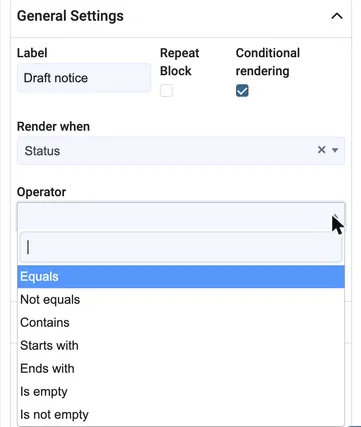
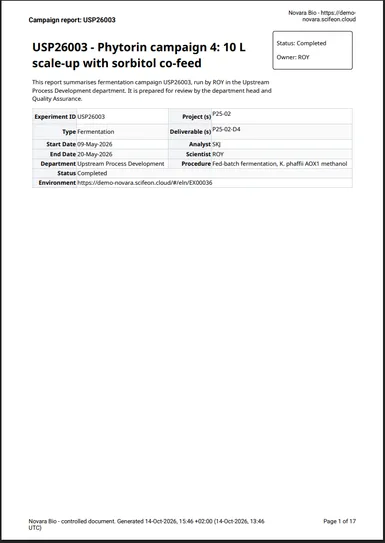
The result for two experiments in the Novara data:
| USP26005, not yet approved | USP26003, approved |
|---|---|
|  |
A condition on a block applies to everything inside it. In the example, the “Conclusion” section has the condition Experiment conclusion Is not empty, so the conclusion heading and text are left out when the experiment has no conclusion.
Good to know:
- Conditions only apply when the report is generated. The designer always shows all blocks, so you can still edit them.
- A condition that is not complete, for example without an operator, is ignored and the block is always shown. The settings panel shows a warning until the condition is complete, and changes are not applied until then.
- A condition inside a repeated block is checked for each item separately, and can use the accessor of the item.
- Conditions can only check single values, not lists. You cannot, for example, hide a table when a list is empty.
Previewing the template
Section titled “Previewing the template”Click Preview at the top of the designer to build a real PDF from the template. Use it to check page breaks, the header and footer, and landscape pages.
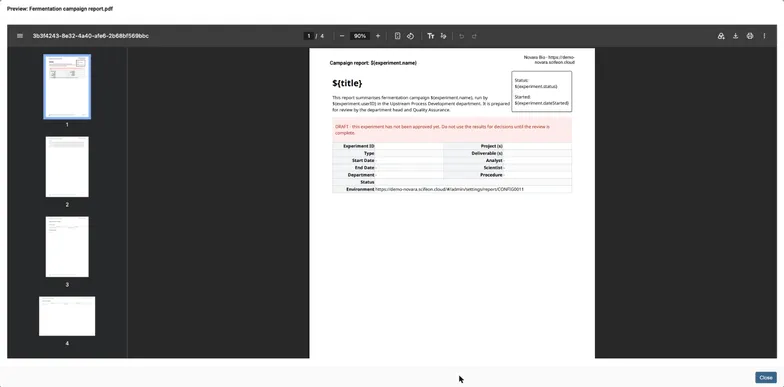
The preview shows the variables, not real data, and shows every repeated block once.
Generating the report
Section titled “Generating the report”Users generate an Experiment Report from the experiment in the ELN:
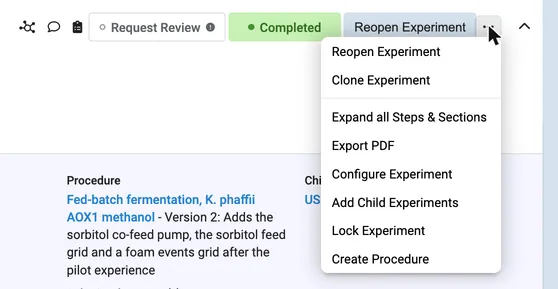
- Open the experiment and click … at the top right, then Export PDF.
- Select the template under Select template. A preview of the report with the data of the experiment is shown.
- Adjust the file name and options if needed, and click Save Report. The PDF is saved on the experiment.
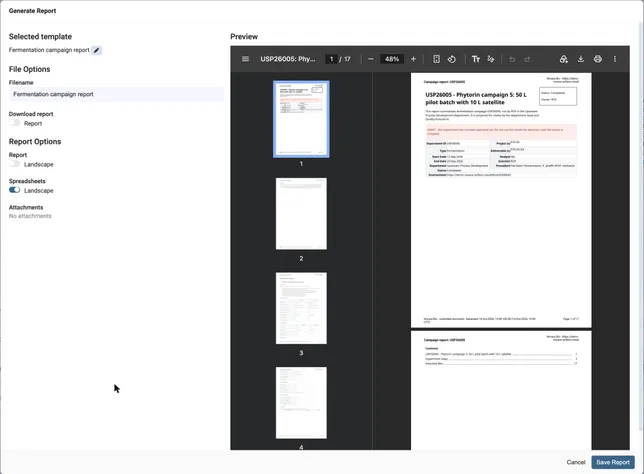
The Generate Report dialog for the pilot batch USP26005. The report has 17 pages.
This is the best way to test a template against real data: select the template, check the preview, and click Cancel instead of Save Report.