
Approvals & Review Comments
Scifeon provides a structured review workflow for experiments, steps, form fields, and procedure templates. The feature has two complementary components:
- Approvals — formal sign-off actions (approve, reject, request changes, etc.) that record who reviewed what and when.
- Review Comments — threaded discussions that annotate specific steps or form entries, used to communicate feedback during a review.
Both are accessed through the Review Comments panel and the Approve / Review button visible throughout the ELN.
Approvals
Section titled “Approvals”Opening the Approval Dialog
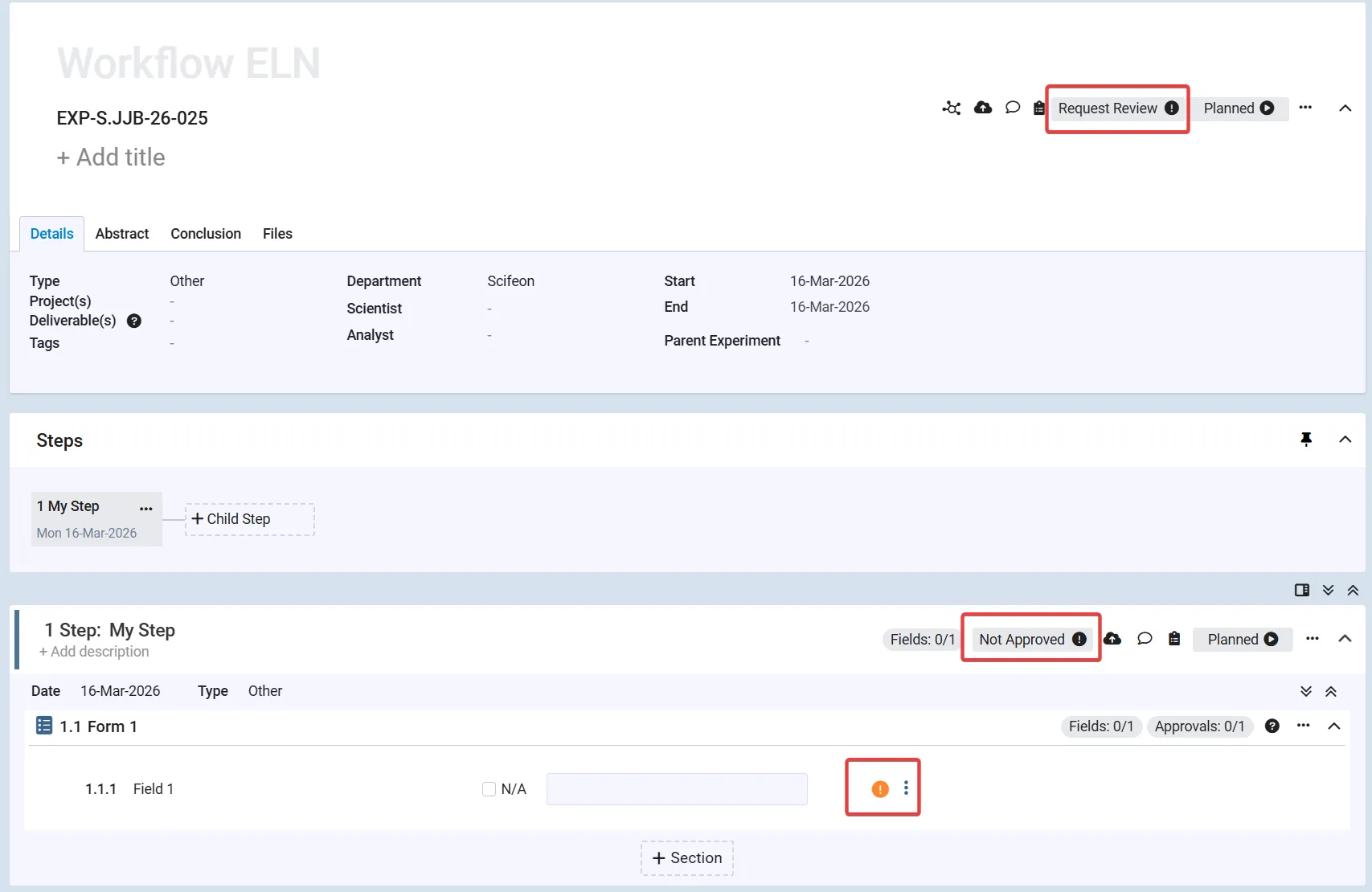
Section titled “Opening the Approval Dialog”An Approve or Review button appears:
- In the ELN header — to approve the entire experiment.
- In each step header — to approve an individual step.
- On individual form fields — when a field has been configured to require field-level approval.
Click the button to open the Approval dialog.
Approval Actions
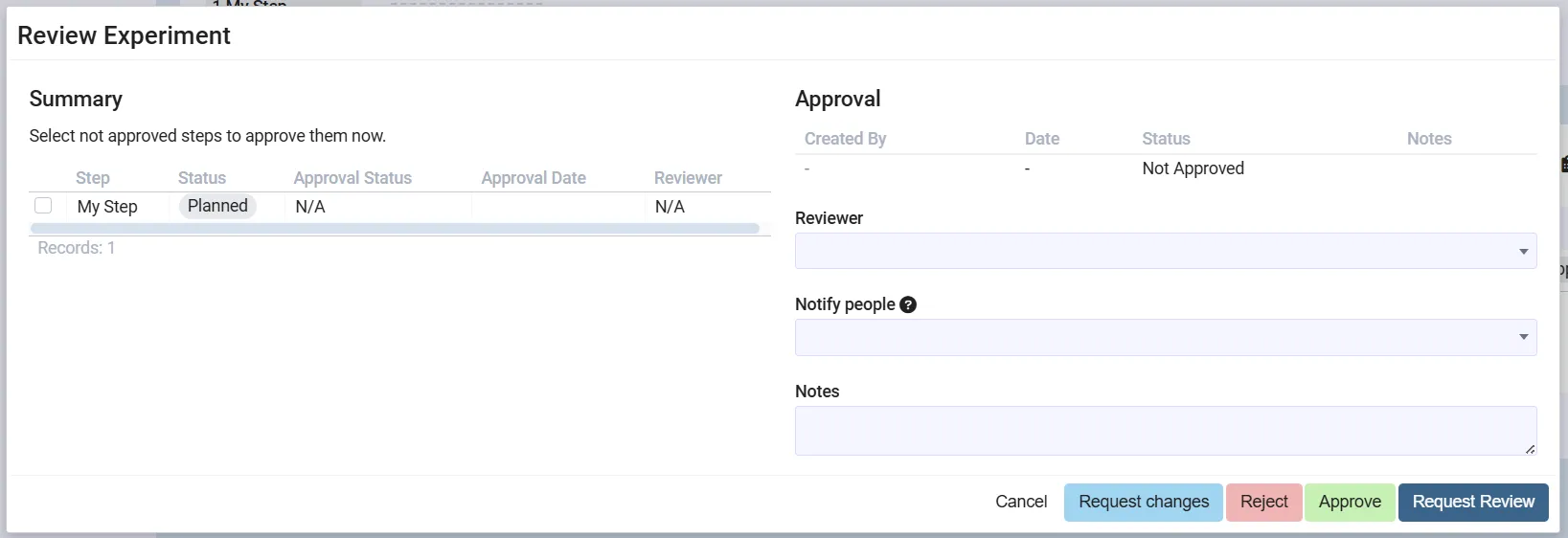
Section titled “Approval Actions”The actions available depend on the current approval status and the user’s role:
| Action | When available | Description |
|---|---|---|
| Request Review | Status: Initial, Changes Requested, or Withdrawn | Assigns a specific reviewer to evaluate the item. |
| Approve | When not yet completed | Formally approves the item. |
| Reject | When not yet completed | Rejects the item. A note is required. |
| Request Changes | When not yet completed | Marks the item as needing changes before it can be approved. |
| Withdraw | After approval | Revokes a previously granted approval. |
Notifying People
Section titled “Notifying People”The Approval dialog includes a Notify people field. Use it to send a notification to additional users when submitting an approval action (e.g. to inform the analyst that changes are requested, or to inform a manager that an approval was granted).
Approval History
Section titled “Approval History”The dialog shows a table of all past actions for the item, including who performed the action, when, the resulting status, and any notes. This provides a complete audit trail.
Signatures
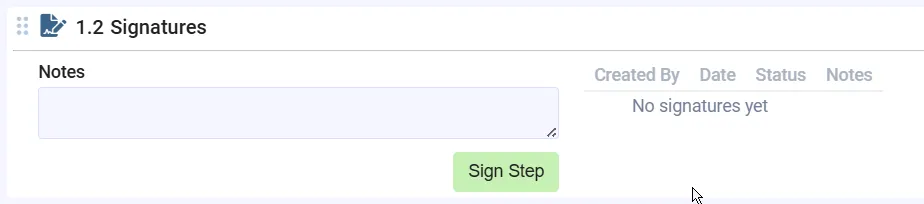
Section titled “Signatures”If signing is enabled in the system administration, a Signatures section appears in the Approval dialog. Users can:
- Sign — attach a digital signature to the experiment or step, indicating their review without explicitly approving. This is useful for the two-eyes principle, where one user approves and another signs to confirm they have reviewed the approval.
- Withdraw Signature — remove a previously added signature.
Form Field Approvals
Section titled “Form Field Approvals”Individual form fields can be configured to require approval. When enabled, an inline approval button appears next to the field value. The button is disabled while the field has unsaved changes.
Review Comments
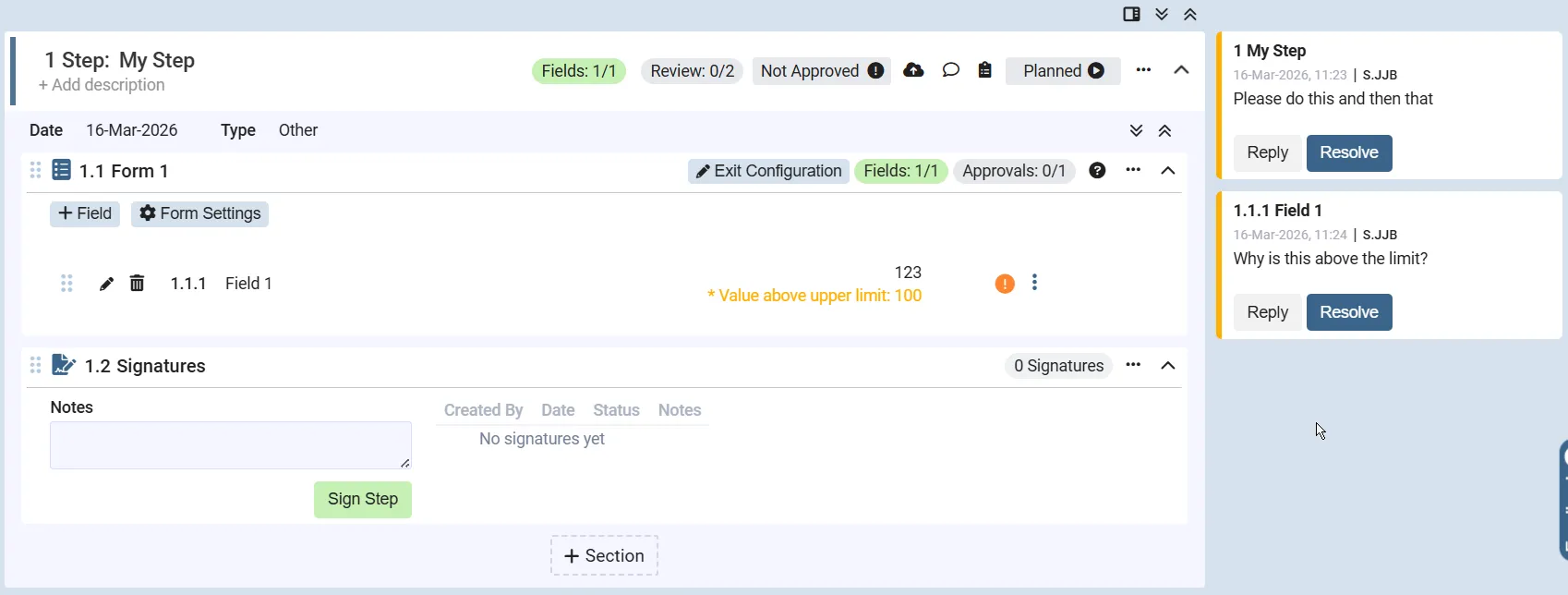
Section titled “Review Comments”Review Comments are threaded discussions attached to a step or form entry. They are typically used by a reviewer to leave feedback for the analyst before formally approving.
Adding a Review Comment
Section titled “Adding a Review Comment”In the ELN click the dots-menu on a step or form field and select Add Review Comment.
Replying to a Comment
Section titled “Replying to a Comment”Click inside an existing thread and type your reply. Replies are visible to anyone with access to the experiment.
Resolving a Comment
Section titled “Resolving a Comment”Once the feedback has been addressed, a user with the reviewer role can mark a comment as resolved by clicking Resolve. Resolved comments collapse and are visually distinguished from open ones. A resolved comment can be reopened by clicking Unresolve.
Approvals in Procedures
Section titled “Approvals in Procedures”Procedure templates support the same approval workflow. If template approval is enabled, a Review button appears at the top of the ELN Workflow Template editor.
When approving a procedure template version, an additional action is available:
- Approve and Release Version — approves the template and releases the procedure version in a single step, provided the user has both reviewer and releaser roles.
For more information on procedure versions and release workflows, see Procedures.
System Administration
Section titled “System Administration”Approval and signing are configured under Administration → ELN Settings → Experiment Approval & Signing.
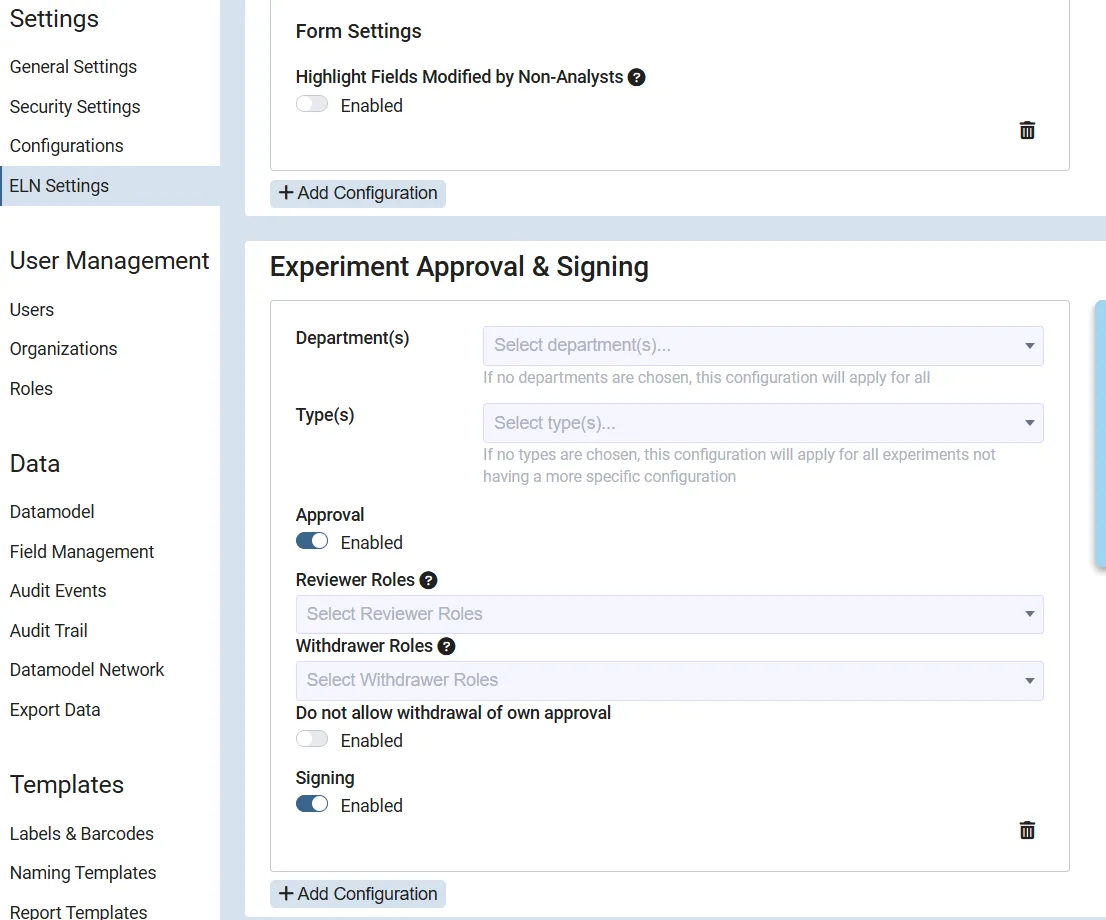
| Setting | Description |
|---|---|
| Department(s) | The department(s) for which the approval workflow applies. |
| Type(s) | The experiment types for which the approval workflow applies. |
| Enable Approvals | Turns the approval workflow on or off for the department. |
| Enable Signing | Turns signatures on or off. |
| Reviewer Roles | Roles that are allowed to approve items and resolve review comments. |
| Withdrawer Roles | Roles that are allowed to withdraw approvals. |
| Disallow self-withdrawal | When enabled, users cannot withdraw their own approval. |
| Require template approval before release | When enabled, a procedure version cannot be released until its template has been approved. |