
SCIM Provisioning
SCIM (System for Cross-domain Identity Management) allows you to automatically provision and deprovision users and groups from your identity provider into Scifeon. This guide walks through setting up SCIM provisioning with Microsoft Entra ID.
Prerequisites
Section titled “Prerequisites”- Administrator access to both Microsoft Entra ID and Scifeon
- Microsoft Entra ID P1 or P2 license (required for provisioning)
Step 1: Create an Enterprise Application in Entra ID
Section titled “Step 1: Create an Enterprise Application in Entra ID”- Go to the Azure Portal and navigate to Microsoft Entra ID > Enterprise Applications.
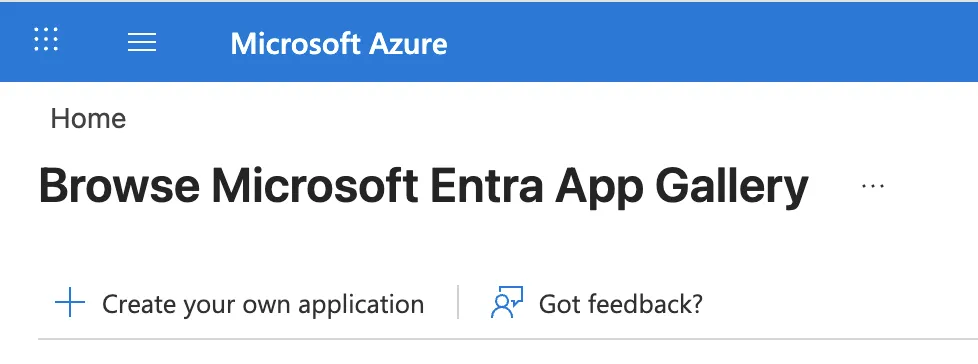
- Click + Create your own application in the Browse Microsoft Entra App Gallery.
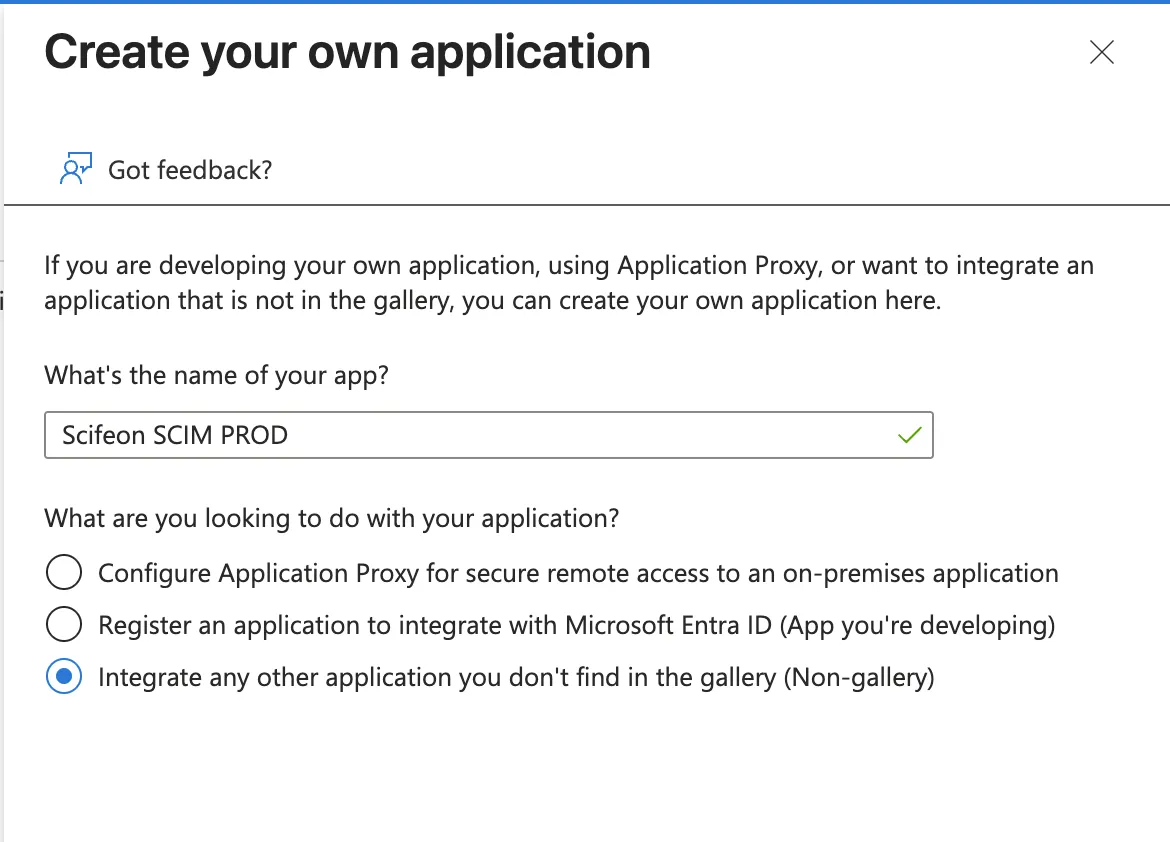
- Enter a name for the application (e.g. “Scifeon SCIM”), select Integrate any other application you don’t find in the gallery (Non-gallery), and click Create.
Step 2: Assign Users and Groups
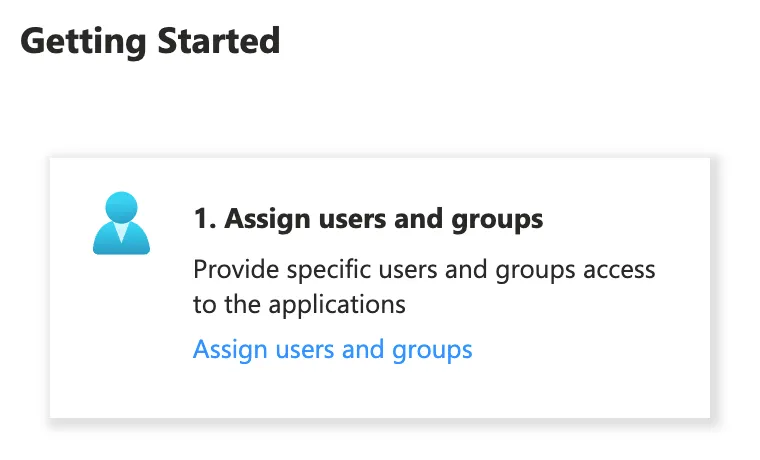
Section titled “Step 2: Assign Users and Groups”- In the application overview under Getting Started, click Assign users and groups.
- Click + Add user/group and select the users or groups you want to provision to Scifeon.
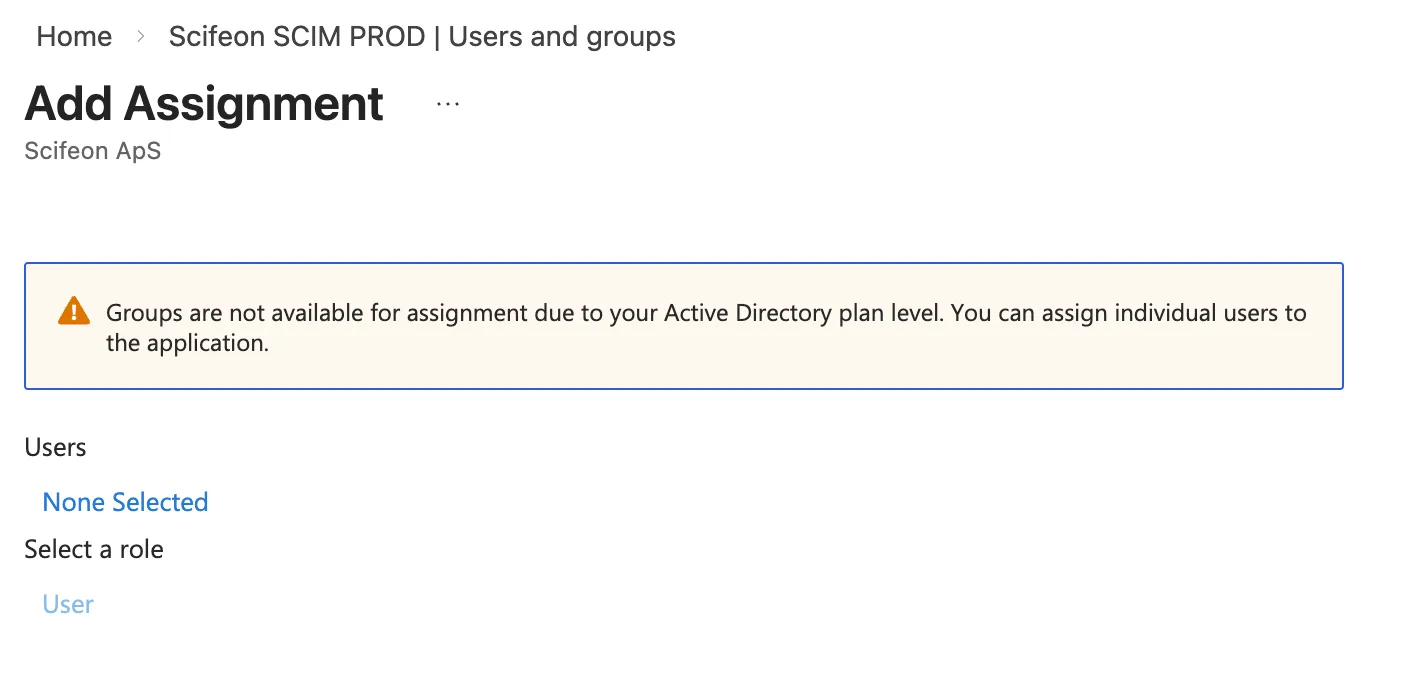
Note: Group assignment requires an Entra ID P1 or P2 license. Without it, you can only assign individual users.
Step 3: Enable SCIM in Scifeon
Section titled “Step 3: Enable SCIM in Scifeon”- In Scifeon, go to Administration > SCIM.
- Copy the Endpoint URL shown on the SCIM settings page.
- Toggle Enable SCIM to Active.
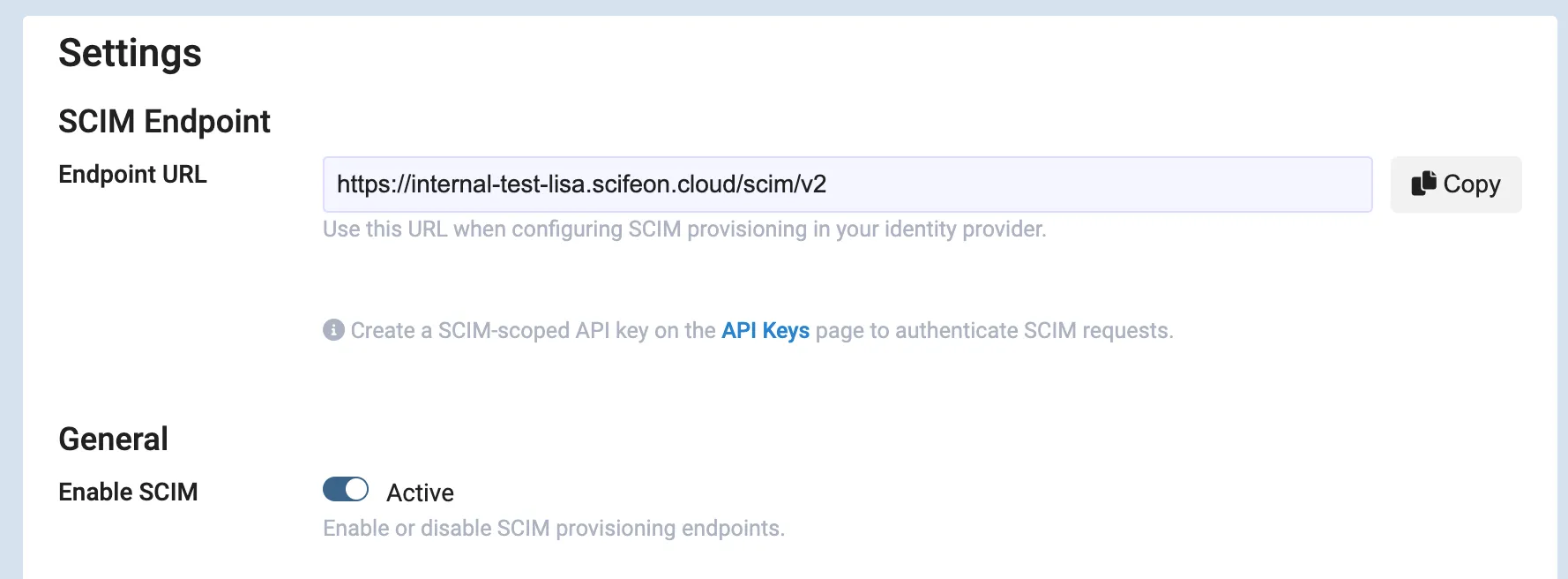
Step 4: Create a SCIM API Key in Scifeon
Section titled “Step 4: Create a SCIM API Key in Scifeon”- In Scifeon, go to Administration > Data Access > API Keys.
- Click + API Key and create a new key with the SCIM scope.
- Copy the generated key — you will need it in the next step.
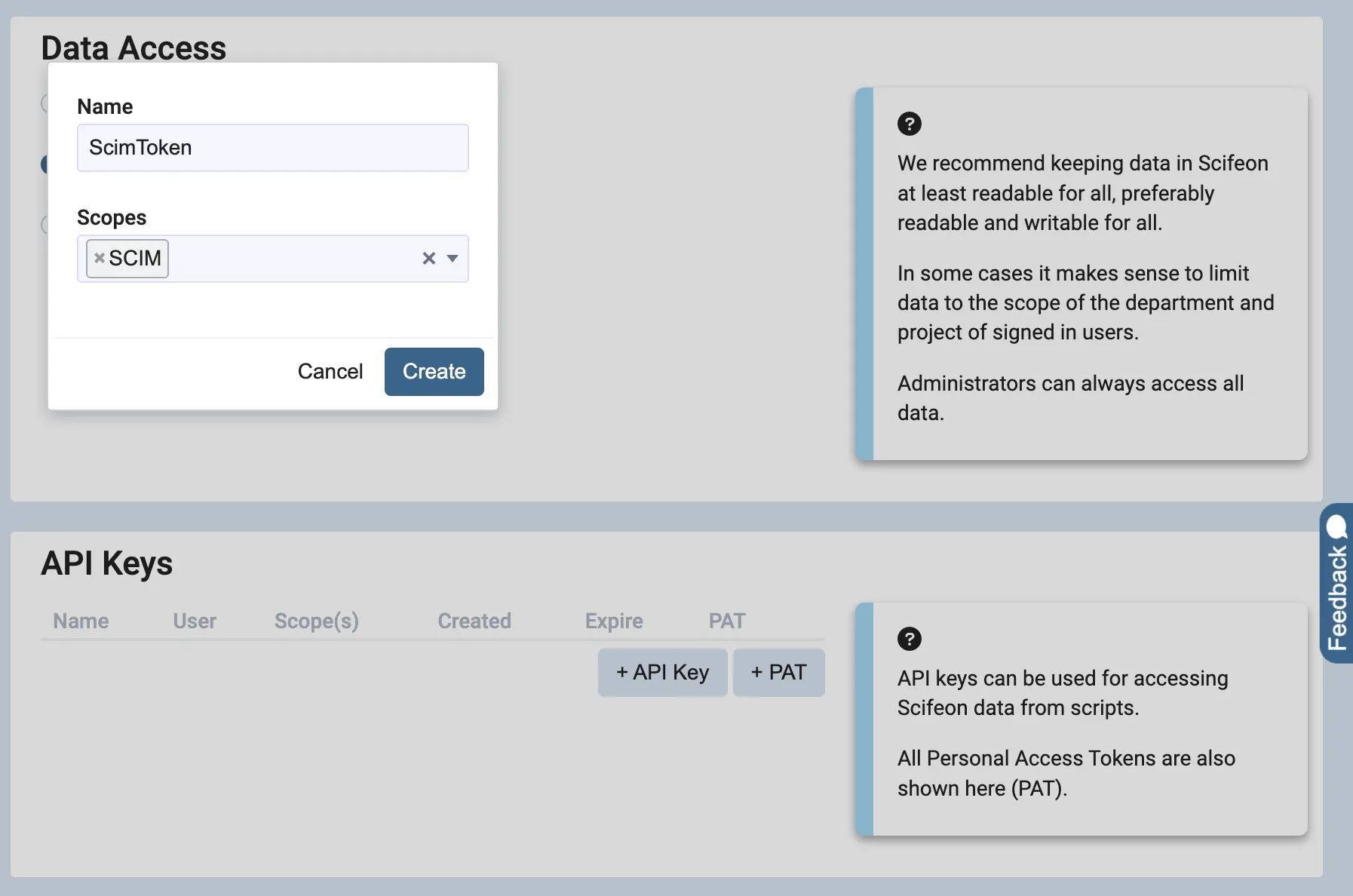
Step 5: Configure Provisioning in Entra ID
Section titled “Step 5: Configure Provisioning in Entra ID”- Back in the Azure Portal, open your Scifeon enterprise application.
- Select Provisioning in the left menu.
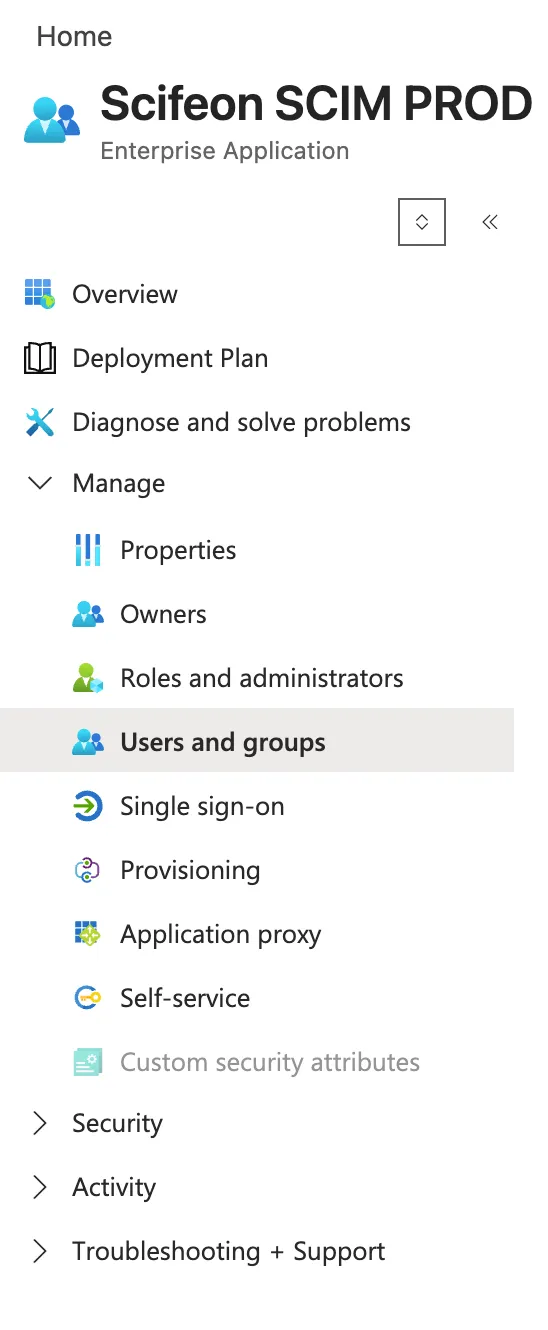
- Click + New configuration.
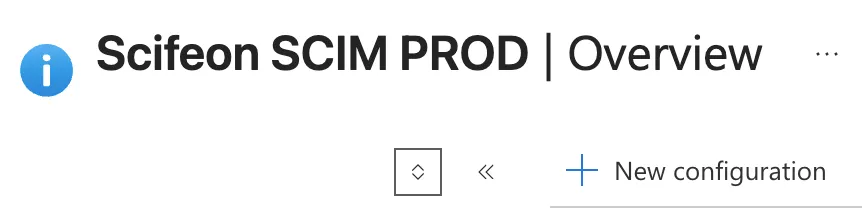
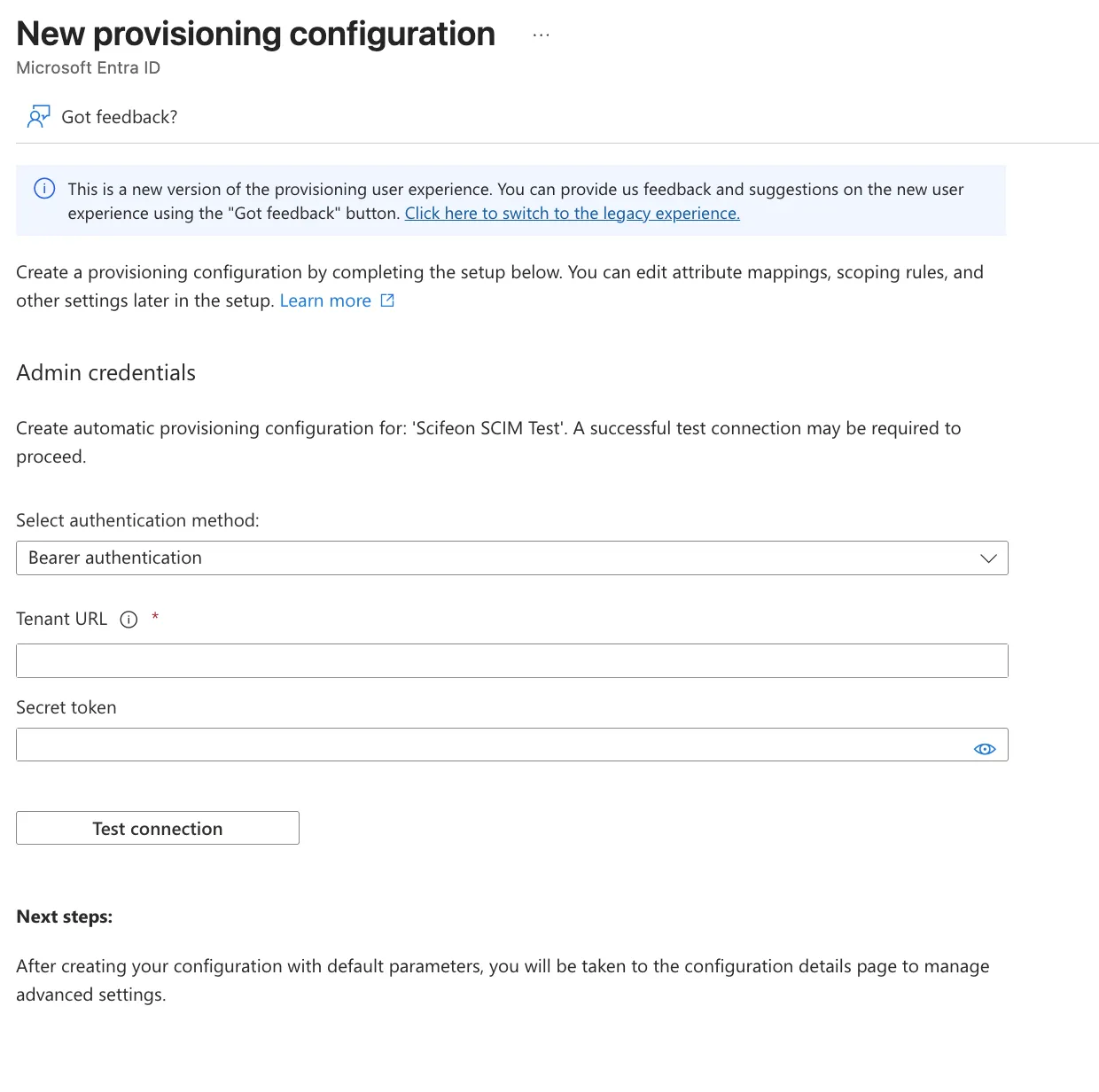
- Under Admin credentials, set the authentication method to Bearer authentication.
- Paste the Scifeon SCIM endpoint URL from Step 3 into Tenant URL.
- Paste the API key from Step 4 into Secret token.
- Click Test connection to verify the connection.
Step 6: Scope Users and Groups
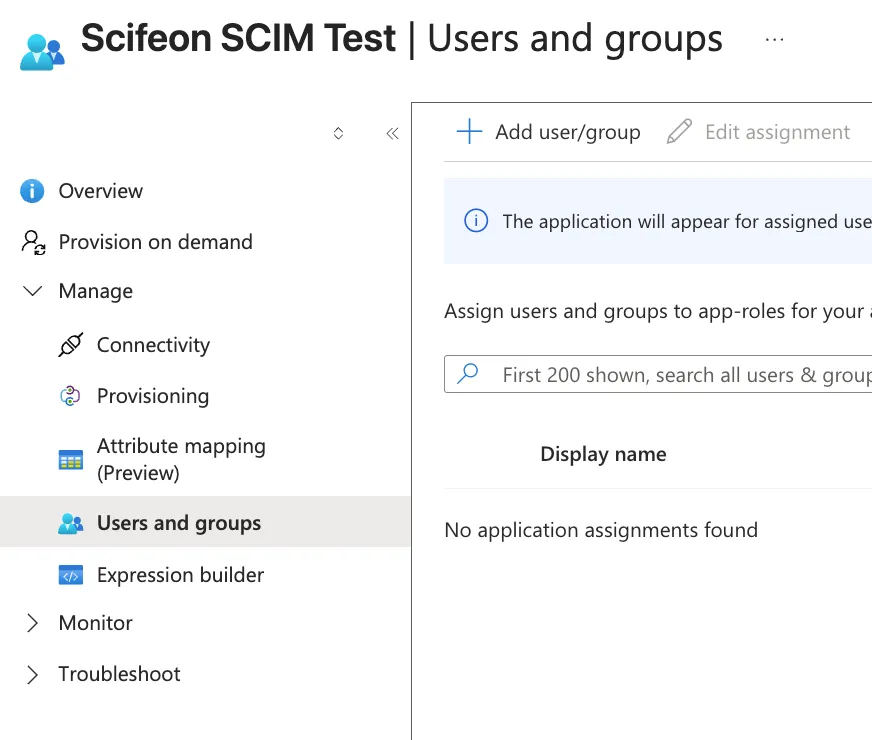
Section titled “Step 6: Scope Users and Groups”- After saving the configuration, navigate to Users and groups in the provisioning settings.
- Add the users and groups that should be provisioned to Scifeon.
Once provisioning is enabled, Entra ID will automatically sync users and groups to Scifeon according to the configured schedule (typically every 40 minutes).
Configure Mappings in Scifeon
Section titled “Configure Mappings in Scifeon”After provisioning is active, you can configure how SCIM attributes map to Scifeon user fields in Administration > SCIM:
- Column Mappings — Map SCIM attributes (e.g. name, email, phone) to Scifeon user fields.
- Department Mappings — Map Entra ID departments to Scifeon departments.
- Group-Role Mappings — Map Entra ID groups to Scifeon roles, enabling automatic role assignment based on group membership.
Troubleshooting
Section titled “Troubleshooting”The SCIM administration page in Scifeon shows provisioning errors and logs. Use the Errors section to identify and resolve any issues with user or group provisioning.