
Procedures
Scifeon’s Procedures module allows users to standardize laboratory workflows and experiments by creating templates for the Electronic Lab Notebook (ELN). A Procedure is a structured workflow that can have multiple Procedure Versions, each representing an iteration of the procedure template.
When creating a new Procedure, an initial empty Version 1 is automatically generated. Users can manage procedure versions using various tools provided within the Procedure Page.
Managing Procedure Versions
Section titled “Managing Procedure Versions”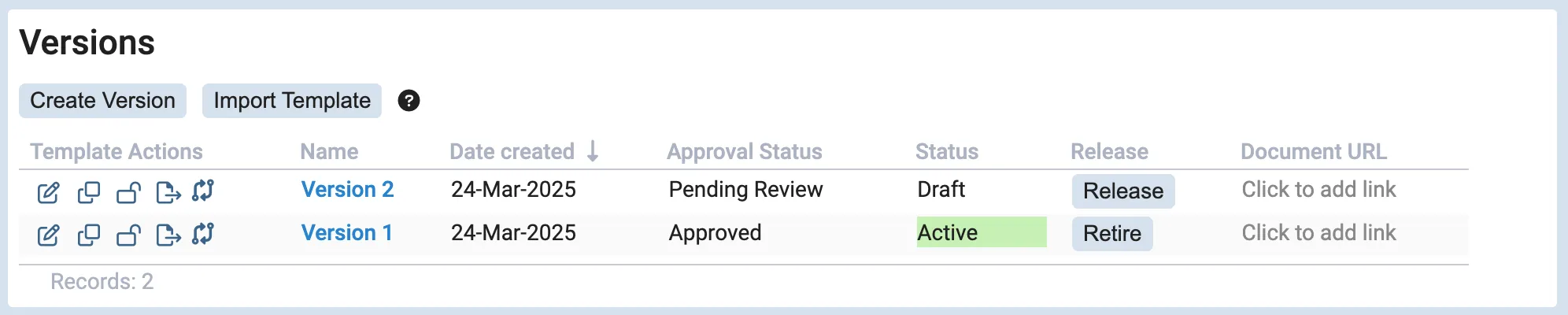
Each Procedure contains a list of Procedure Versions. For each version, users have access to four key actions:
- Create or Edit Procedure Template – Creates a new ELN Workflow template or modifies an existing one.
- Clone Version – Duplicates an existing ELN Workflow template into a new version.
- Lock/Unlock Procedure Template – Restricts or allows editing of the ELN Workflow template.
- Import/Export Template – Allows users to upload a previously exported template to a version that does not yet have a template.
- Compare Procedure Templates - Compare versions and see a detailed representation of what has changed.
Which of these actions you are offered depends on the procedure’s configuration: a user who may not edit templates or release versions is not shown the corresponding actions. See Configuring Procedures.
Additionally, depending on the version status, the following actions are available:
- Release – Converts a draft version into an active version.
- Retire – Deactivates an active version.
A new experiment can only be created from a procedure version if both:
- The Procedure itself has an Active status.
- The Procedure Version has an Active status (i.e., released).
Creating and Importing Versions
Section titled “Creating and Importing Versions”Above the Procedure Versions list, two buttons provide additional functionality:
- Create New Version – Clones the latest version along with its procedure template.
- Import Template – Allows users to upload an exported procedure template to create a new version.
Experiments Linked to Procedures
Section titled “Experiments Linked to Procedures”
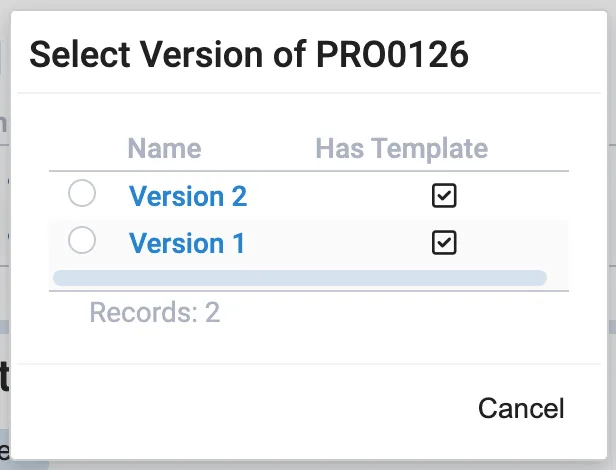
Each Procedure page displays a list of experiments created using that Procedure. Users who are allowed to create experiments from the Procedure, which is everyone unless its configuration says otherwise, can create a new one by clicking Create Experiment, which utilizes the current active version of the Procedure Template. If multiple active versions exist, users are prompted to select which version to use.
Reviewing a Procedure Template
Section titled “Reviewing a Procedure Template”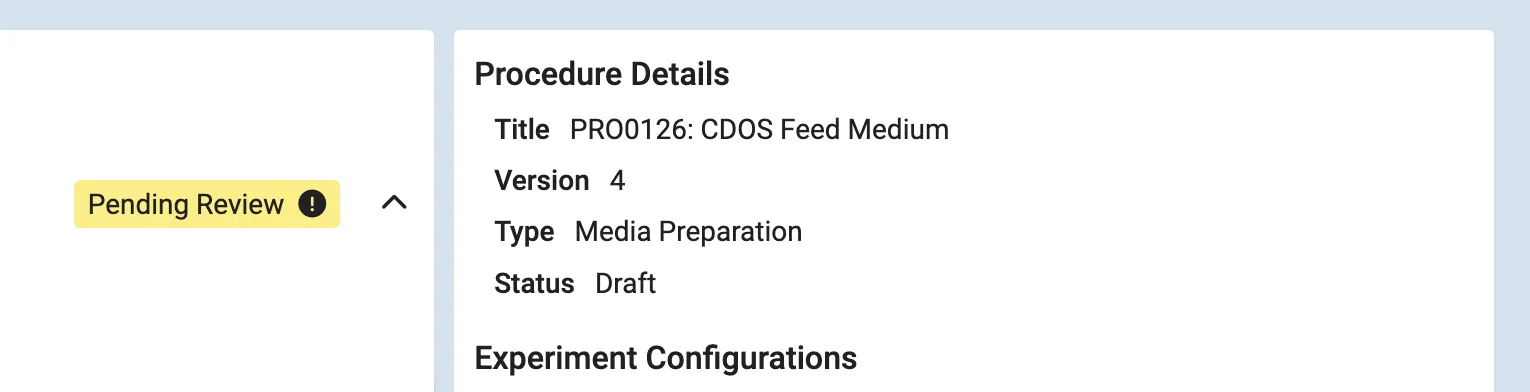
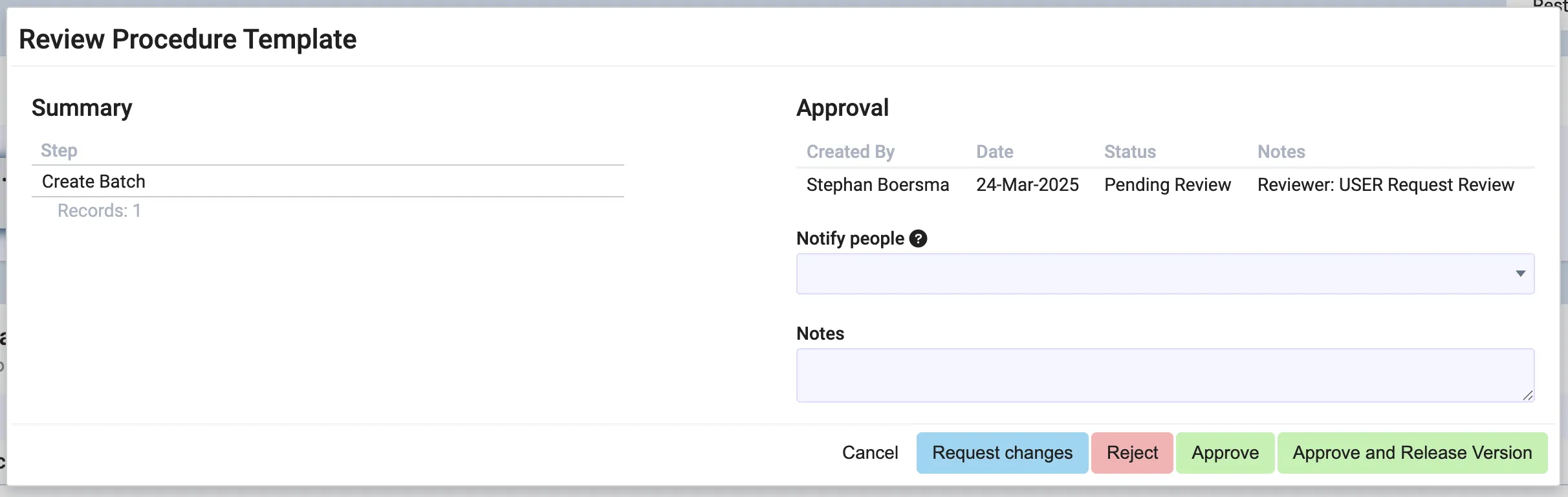
If approval of procedure templates is enabled for the procedure, on its Configuration card or in Administration → Settings → Procedure Settings, a review button appears in the top of the ELN workflow template. Clicking the review button will open the approval window. See Approvals & Review Comments for a full description of the approval workflow and configuration options.
Step Procedures
Section titled “Step Procedures”Step Procedures can be used as building blocks for constructing new experiments. A Step Procedure can be one or more steps. Typical use cases would be having one Procedure for constructing a base Experiment, and then from there add Steps from Step Procedures. E.g. if it is not given which sub-workflows need to be executed in an Experiment.
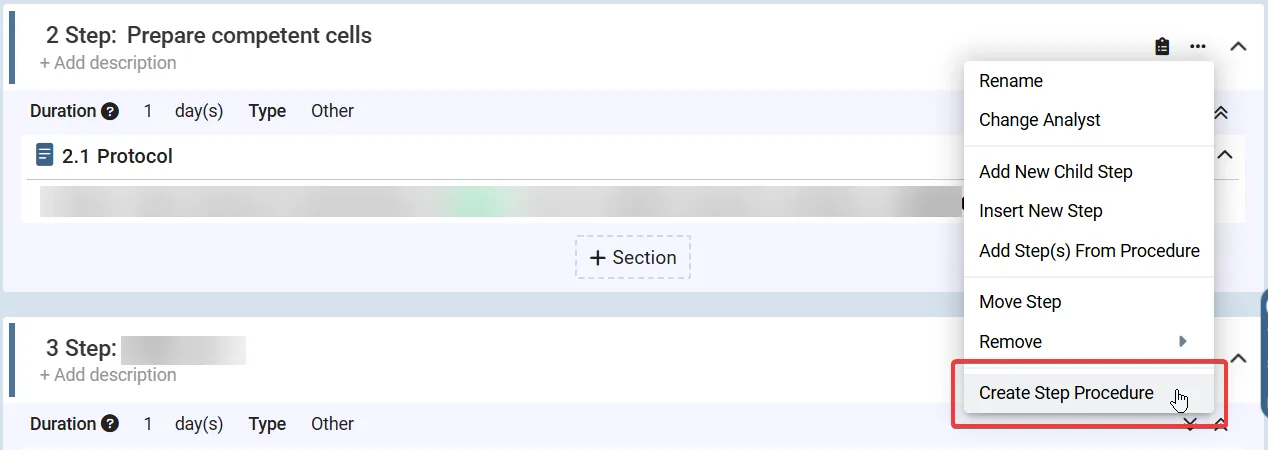
It is possible to create a Step Procedure from a Step in an Experiment:
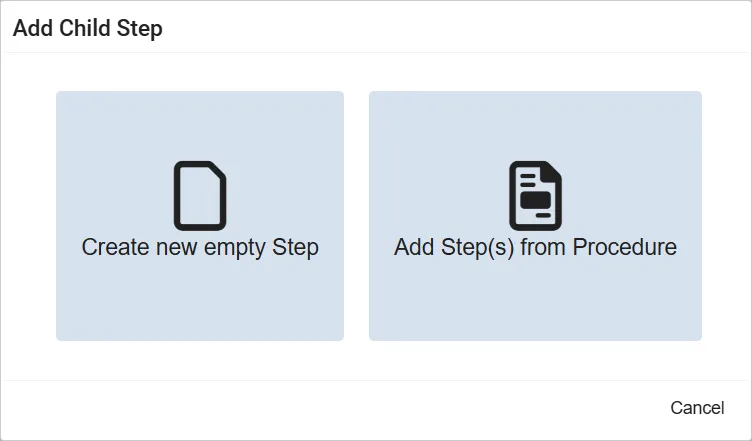
And then in new Experiments Step Procedures can be selected when adding Steps:
Configuring Procedures
Section titled “Configuring Procedures”A procedure configuration decides who may work on a procedure and how its versions behave. There are two places to set one up:
- The Configuration card on a procedure’s own page. What you set here applies to that procedure alone. The card is shown to users who have the Configure Procedure Settings permission, so the people responsible for a procedure can maintain its rules without changing a department-wide setting.
- Administration → Settings → Procedure Settings, where one configuration can cover several procedures, one or more departments, or one or more experiment types.
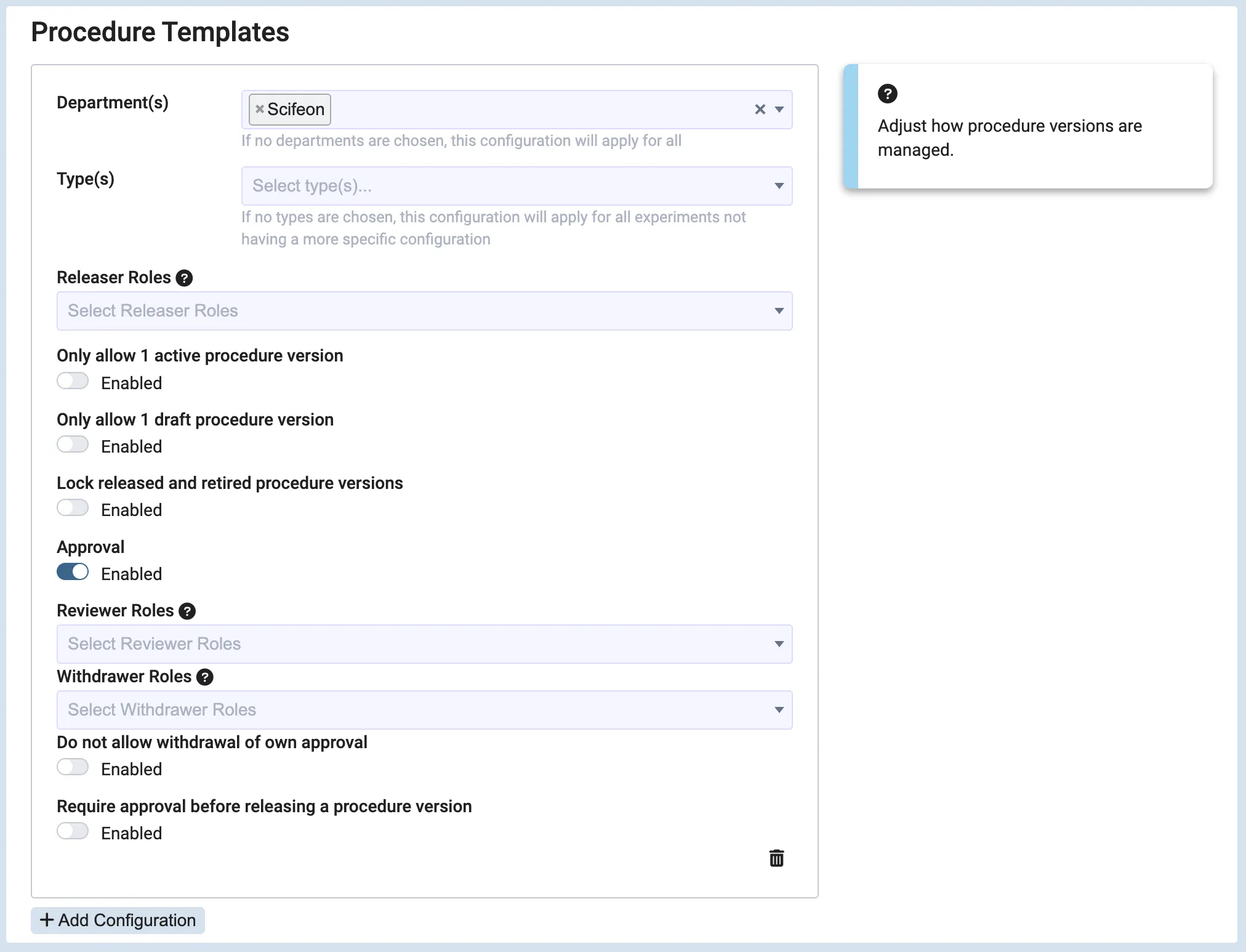
The form is arranged in four groups: Who may do what for the role fields, Versions for the version rules, Template review for approval of the procedure’s own templates, and Experiment approval & signing for the experiments created from it.
When both apply, the configuration made for the specific procedure wins. This lets you set a general rule for a department once and make exceptions for individual procedures. A configuration that names procedure A never affects procedure B, even if they share a department.
A procedure’s configuration replaces the department and type defaults rather than adding to them. A field left empty in the procedure’s configuration means everyone, not “use the department default”, so copy over any restriction from the default that should still apply.
On the procedure page:
- A procedure without a configuration of its own shows that the department and type defaults apply, and offers Add procedure configuration.
- Remove configuration deletes the procedure’s own configuration, and the defaults apply again.
- If the procedure is covered by a configuration shared with other procedures, the card does not offer to edit it there. Edit it under Administration → Settings → Procedure Settings, so it is clear that the change affects all of them.
Controlling Who May Work on a Procedure
Section titled “Controlling Who May Work on a Procedure”The Who may do what group has one field per capability. An empty field allows everyone, and reads Everyone or Anyone to say so, so nothing is restricted until you deliberately fill one in.
| Field | Controls |
|---|---|
| Release versions | Who may draft, release and retire versions of the procedure. |
| Edit templates | Who may create, clone and edit the procedure’s templates. The procedure’s owner always may. |
| Create and edit experiments | Who may create experiments from the procedure and change them afterwards. |
| Be assigned as scientist | Who may be set as scientist on the procedure’s experiments. |
| Be assigned as analyst | Who may be set as analyst on the procedure’s experiments and on their steps. |
Every one of these fields accepts roles and individual users, shown as two groups in the selector. If only two named people are qualified for a procedure, you can say exactly that without first creating a role for them.
What a restricted user sees
Section titled “What a restricted user sees”Actions someone is not allowed to perform are not offered, rather than failing when they are attempted:
- Someone outside Release versions has the release, draft and retire actions refused, with a message naming the roles that would grant access.
- Someone outside Edit templates is no longer offered Create Version, Create Template, Clone Version or the template lock on the Versions card, and Edit Template becomes View Template, so the template can still be read but not changed.
- Someone outside Create and edit experiments is refused when creating an experiment from the procedure, and opens an existing experiment from it read-only, including Complete, Cancel, Rename, Reopen and Uncancel.
- People outside Be assigned as scientist and Be assigned as analyst are simply not listed in the Change Scientist and Change Analyst dialogs.
Restricting the scientist and analyst
Section titled “Restricting the scientist and analyst”The scientist is responsible for an experiment and the analyst carries it out, so both are statements about who is qualified. Being allowed to start an experiment is not the same as being qualified to sign for it, which is why Be assigned as scientist and Be assigned as analyst are separate from Create and edit experiments.
Once either is set, the Change Scientist and Change Analyst dialogs offer only the people allowed, both for the experiment as a whole and for an individual step. If a template names a scientist or analyst who is not allowed, including the common Creator of experiment setting, that field is left empty on the new experiment instead of the creation being refused, so a qualified person can be chosen in the notebook. The same applies when an experiment is cloned. The restriction also applies when the scientist or analyst is set on the procedure’s own templates.
Points to keep in mind
Section titled “Points to keep in mind”- Administrators are not exempt. Access depends only on the roles and users you name, which is what makes the restriction meaningful as a control. Grant access deliberately rather than relying on administrator rights.
- The rules follow the procedure, not the experiment. An experiment keeps the rules of the procedure it was created from, even if it is later moved to another department.
- Changes are recorded. Every change to a procedure configuration is written to the audit trail with the field that changed and its old and new value.
- Where a role is used can be seen under Administration → User Management → Roles, which lists the configurations that grant each role.
Version Management Restrictions
Section titled “Version Management Restrictions”The Versions group holds three switches:
- Only allow one active procedure version – Ensures that only one version of a procedure can be active at any time.
- Only allow one draft procedure version – Restricts procedures from having multiple draft versions simultaneously.
- Lock released and retired procedure versions – Prevents editing of a template once a version has been released or retired, requiring a new version for modifications.
Approval Workflow
Section titled “Approval Workflow”The Template review group governs approval of the procedure’s own templates. Enable review turns it on, and the settings beneath it name the Template reviewers and Withdrawers, whether reviewers may withdraw their own approval, and whether a version can only be released once its templates are approved. Template reviewers do not offer the Experiment Scientist entry: a template has no experiment, so there would be no scientist to resolve it to.
The Experiment approval & signing group decides how the experiments created from the procedure are approved. It is a choice between Follow the global Approval & Signing setting and Use this procedure’s own settings, the second of which gives the procedure’s experiments their own review, signing, reviewers and withdrawers without imposing them on unrelated work. Only a configuration scoped to that specific procedure can make that choice; a department or type default cannot, since that would silently change approval for every experiment in the department.
See Approvals & Review Comments for the approval workflow itself.