
Forms
The following sections describe how to use Forms in Scifeon. Forms are used to register data in Scifeon.
The following tutorial explains how to create a Procedure for registering Batch Records: Recording Batch Records - this tutorial also on a general level explains how to use Forms.
Creating and editing Forms
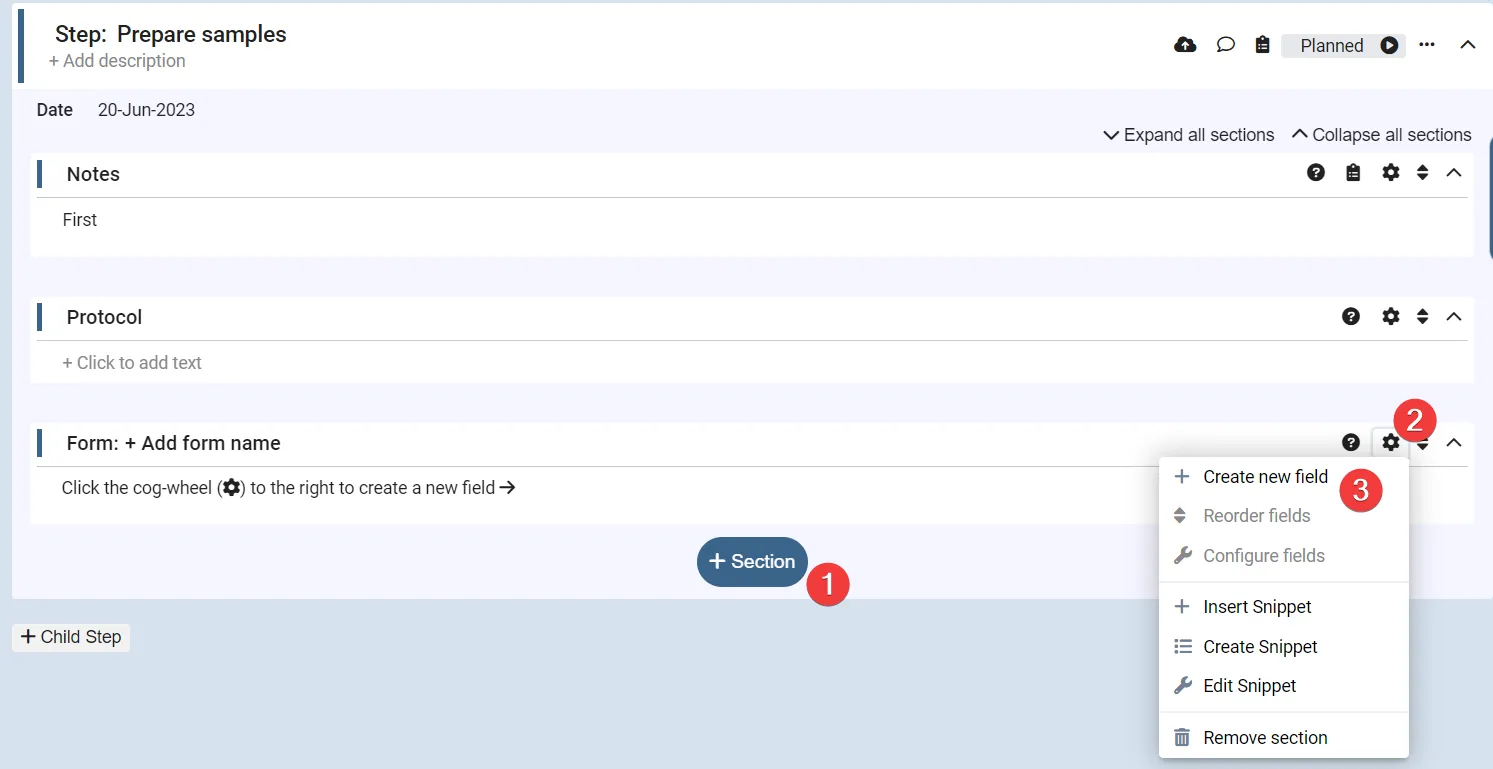
Section titled “Creating and editing Forms”In the ELN click + Section (1) and select Add Form. To add a field to a form that already exists, click the cog-wheel (2) and click Create new field (3):
The dialog opens on the Field Catalog, a list of fields defined centrally by your administrators. There are two ways to add a field:
- From the catalog: search for and select a field template. The field is pre-filled from the template. Settings owned by the template (name, editor type, unit, method, limits, formula, etc.) are locked; label, variable, default value and the other form-specific settings can still be changed.
- From scratch: click Create New Field and fill out the field yourself.
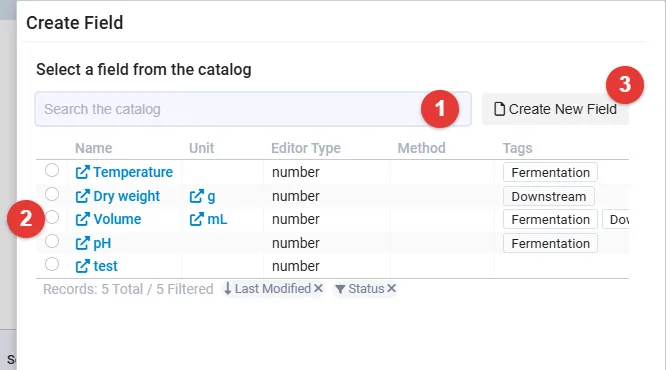
(1) search the catalog, (2) pick a field template, (3) define a field from scratch instead.
In both cases the main settings are:
- Name: The name of the field. Required, max 100 characters, and unique within the step.
- Label: The label of the field, which will be shown to the user. If left empty, the name is used.
- Editor: The type of the field, e.g. Text or Number.
- Variable: Fill out if you want to use the value of this field in a calculation. Variables must be unique in the experiment and follow the rules described under Naming rules.
Click Create or Save + Create New Field to save the field.
If a newer version of a field template is released after a field was created from it, the field shows that the new version is available in configure mode. Click it to preview the changes and update the field, see Template versions in the ELN.
Multiple Columns
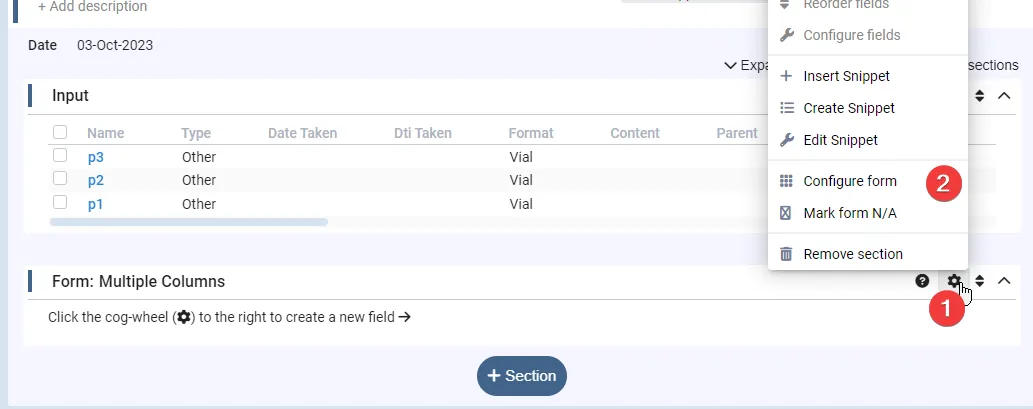
Section titled “Multiple Columns”It is possible to record data for multiple subjects in a form. Currently only Samples are supported as subjects. To enable this, click the cog-wheel (1) and click Configure Form (2):
In Configure Form, click Multiple Columns (1) and select Sample Source e.g. Step Input, and select the current Step (3):
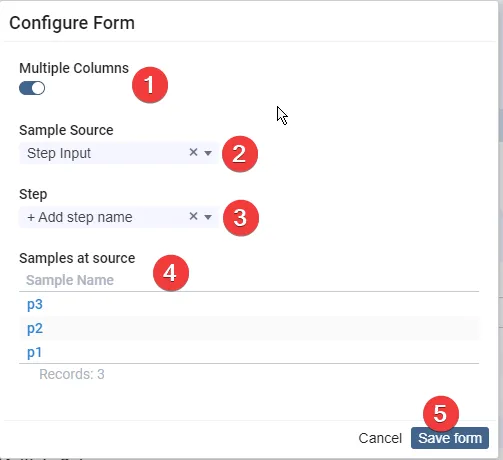
You will see the Samples (4) and when you Save form (5), you will see that the form has been split into multiple columns, one for each Sample:

Field types
Section titled “Field types”The following field types are available. The same settings are used when an administrator defines a field template in the Field Catalog, with one exception: Reference fields can only be created directly in a form.
Select Entity
Section titled “Select Entity”This field type is used to select an entity from the database. The value of this field type is the selected entity. This field type is used to e.g. select a Sample, a Product, a Batch, etc.
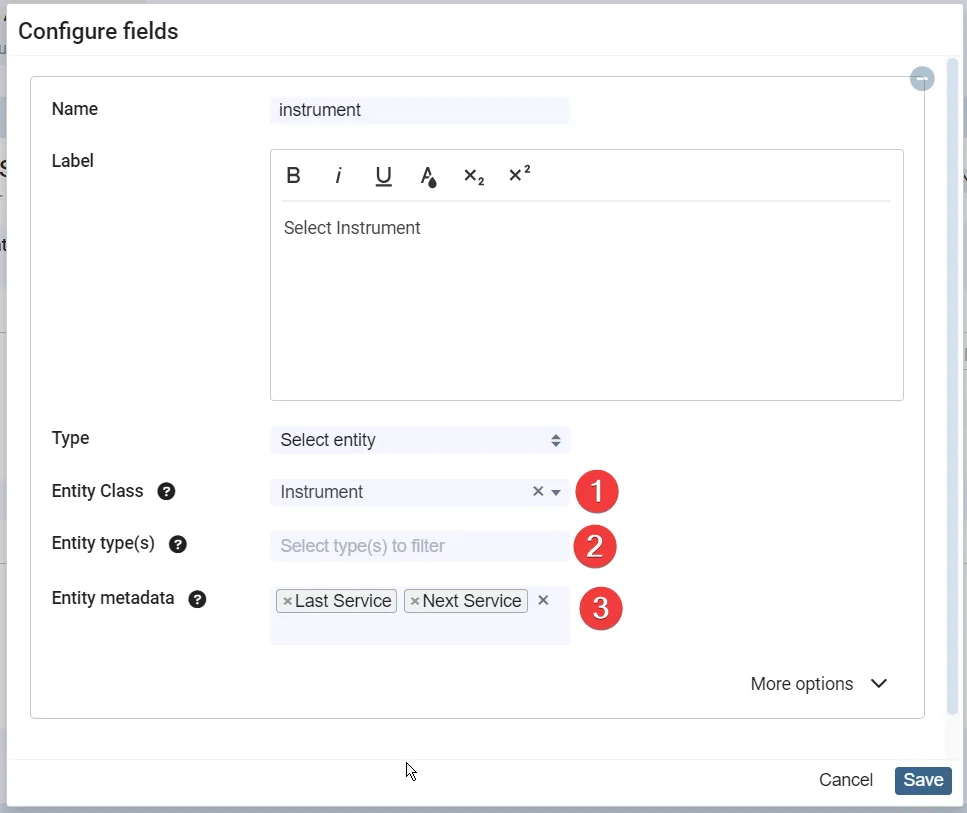
Select the Entity Class (1) and optionally limit the types of entities that can be selected by selecting Entity Type(s) (2). The Entity Metadata (3) can be used for showing additional information about the selected entity directly in the form:
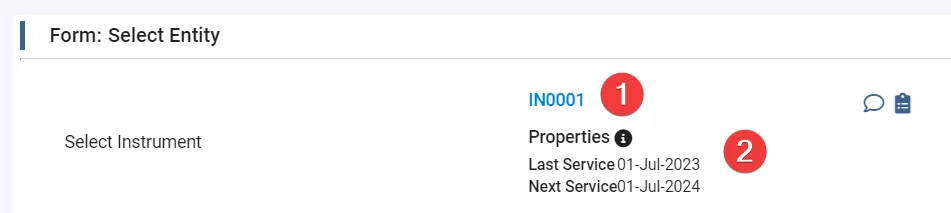
Now when selecting an entity, the metadata will be shown and the entity itself can be clicked to see more details. Please note that the metadata shown is the metadata of the entity at the time of form submission, so if the metadata is changed after the form is submitted, the metadata shown in the form will not be updated, unless explicitly when editing values of the form.
Reference
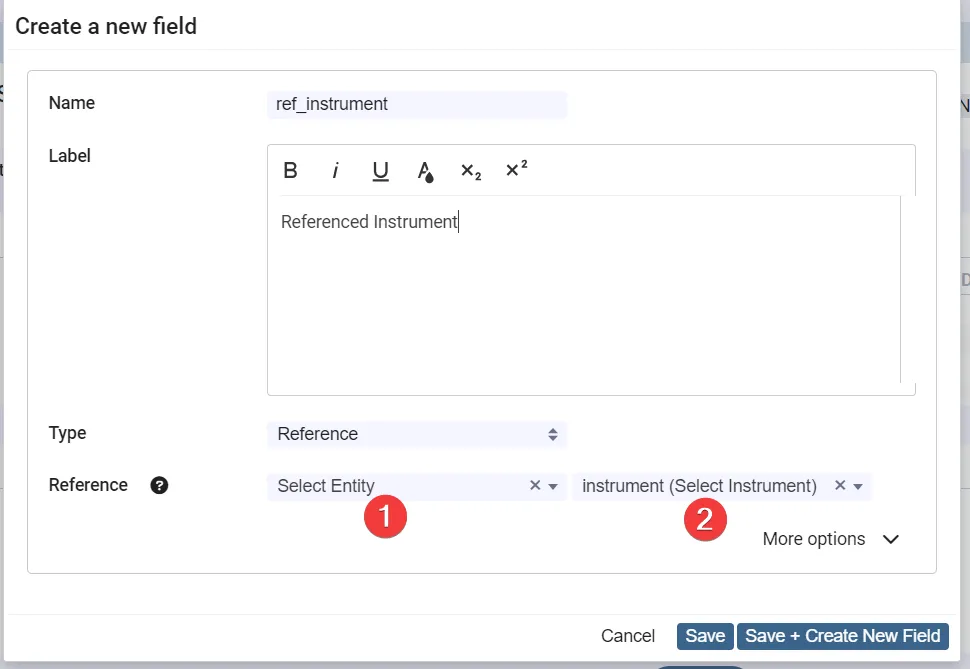
Section titled “Reference”This field type is used to reference another field in a form in the same experiment. The value of this field type is the value of the referenced field. E.g. the instrument selected in the example above can be selected like this, where the Form (1) is selected and then the Field (2) is selected:
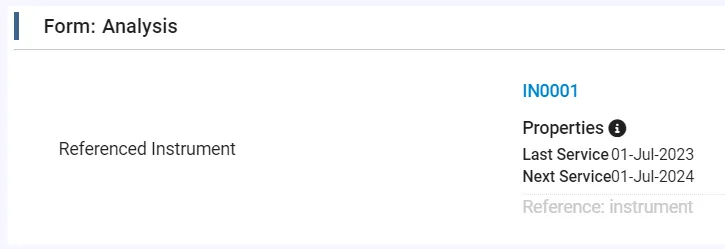
And it will then render like this in the form:
Calculations (formulas)
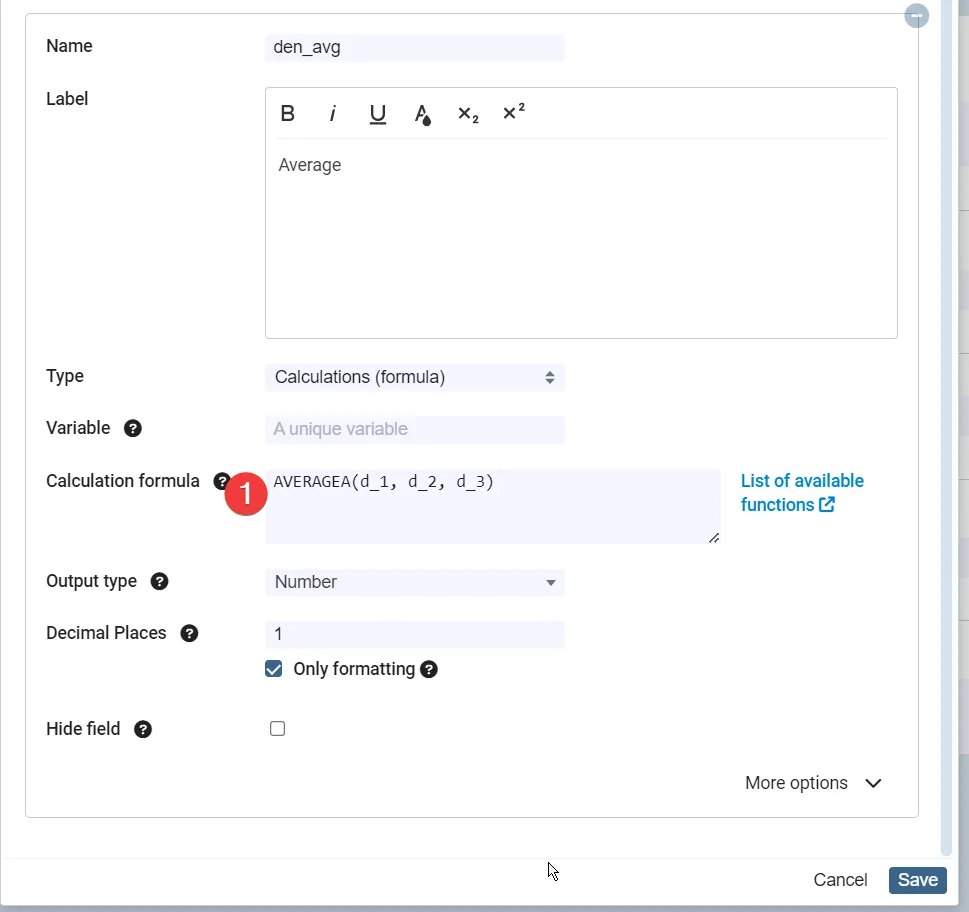
Section titled “Calculations (formulas)”This field type is used to calculate a value based on other fields. The value of this field type is not editable by the user. This can e.g. be used to calculate averages, time differences, etc. This is usually done with simple arithmetic operations, but it is also possible to use more advanced functions, such as IF and SUMIF, like you are used to from e.g. Excel. A list of available functions is available here
Here are some examples of calculations:
// Calculate the average of the fields a, b, c:AVERAGE(a, b, c)
// Time difference between the fields "Start time" (a) and "End time" (b)INT(b-a) & " days, " & HOUR(b-a) & " hours, " & MINUTE(b-a) & " minutes"
Calculations are entered in the Calculation formula field:
Snippets
Section titled “Snippets”Snippets are useful for using the same group of form fields over and over again, without having to re-define the fields.