
Field Catalog
The Field Catalog is where form fields and result types are defined once and reused across procedures and experiments. Instead of every form carrying its own copy of a field definition, an administrator creates a Field Template in the catalog, and users pick it when they add a field to a form in the ELN.
This page covers:
- What a field template contains and how versions work
- Recommendations for deciding what goes into the catalog and how to fill in a template
- Rules and recommendations for naming fields and variables
- How catalog fields behave in the ELN
- Permissions, migration of existing fields, and moving the catalog between instances
For how forms themselves are used, see Forms.
Opening the Field Catalog
Section titled “Opening the Field Catalog”On the Administration page, click Field Catalog. The menu entry is only visible to users with the Manage Field Catalog permission, see Permissions.
The page has two panels:
- Left: the list of field templates with their tags, description, status and current version. Use Quick Search to filter by name, or the column filters to filter by tag.
- Right: the selected template, with its tags and description at the top and one tab per version below.
Click the pencil icon on a row to open a template, or + New to create one.
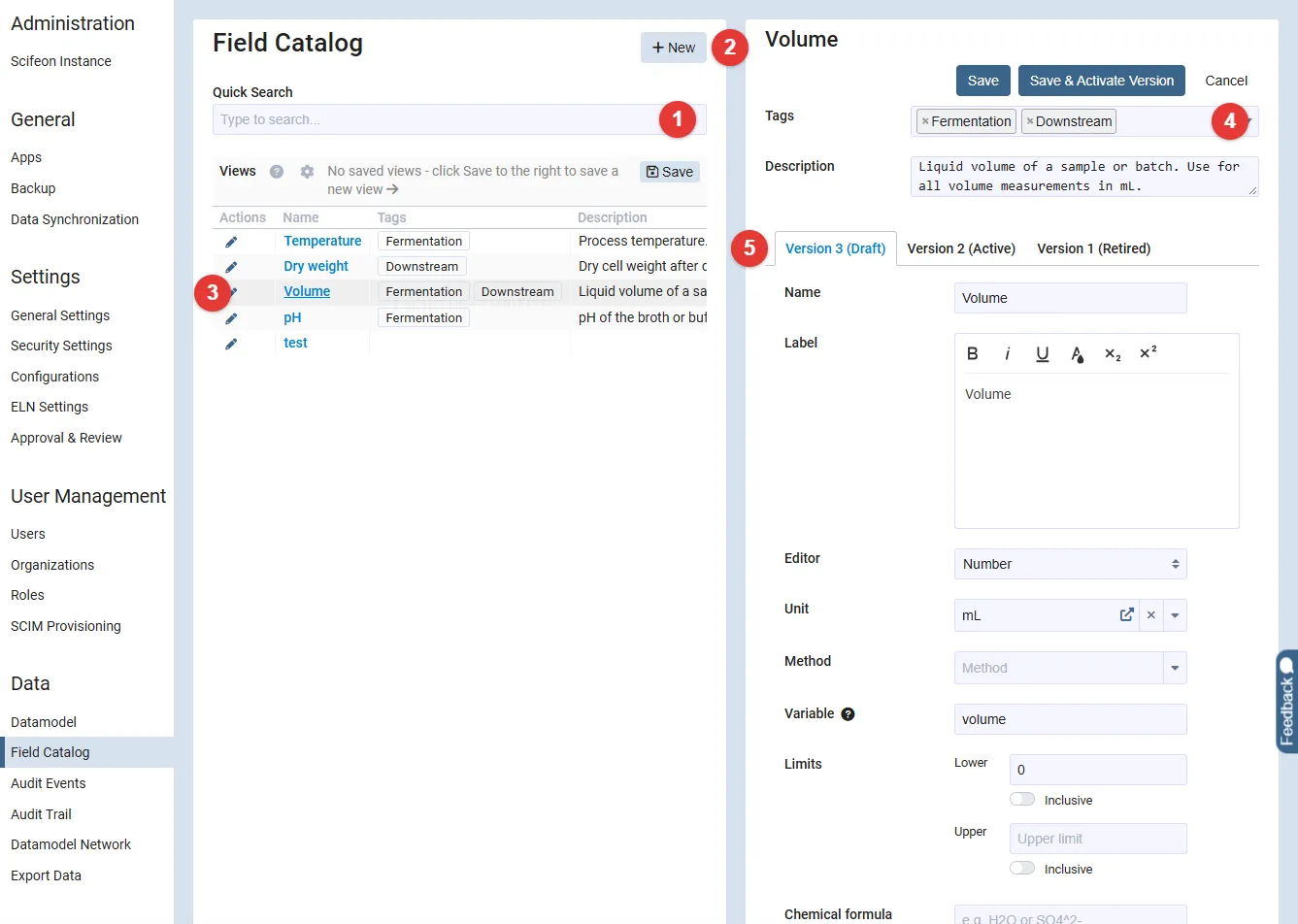
(1) Quick Search, (2) create a template, (3) open a template, (4) the template’s tags and description, (5) one tab per version.
Field templates and versions
Section titled “Field templates and versions”A template is the reusable field. It holds the name, a description and tags. The name is taken from its active version, so it is not edited separately.
A version (also called a definition) holds the actual field settings: editor type, data type, unit, method, variable, limits, default value, uncertainty, chemical formula, icon, help text, options such as Required to complete step, image attachments, and so on. The available settings depend on the editor type, exactly as when creating a field directly in a form.
Every version has a status:
| Status | Meaning |
|---|---|
| Draft | Work in progress. Can be edited and saved as often as needed. Not offered in the ELN. |
| Active | Released. Offered in the catalog picker in the ELN. Read-only. |
| Retired | No longer offered in the ELN. Fields already created from it keep working. Read-only. |
Only the Active version is offered when users pick a field from the catalog. A template can have at most one Draft and one Active version at a time.
Creating a template
Section titled “Creating a template”- Click + New. A new template with a Draft version 1 opens on the right.
- Fill out the version. Name is required; everything else is optional but should be filled in as far as possible, since users will reuse the template as-is.
- Add Tags and a Description on the template. Tags are the easiest way to find fields again as the catalog grows, e.g. by department, assay or instrument.
- Click Save to keep it as a Draft, or Save & Activate Version to save and release it in one step.
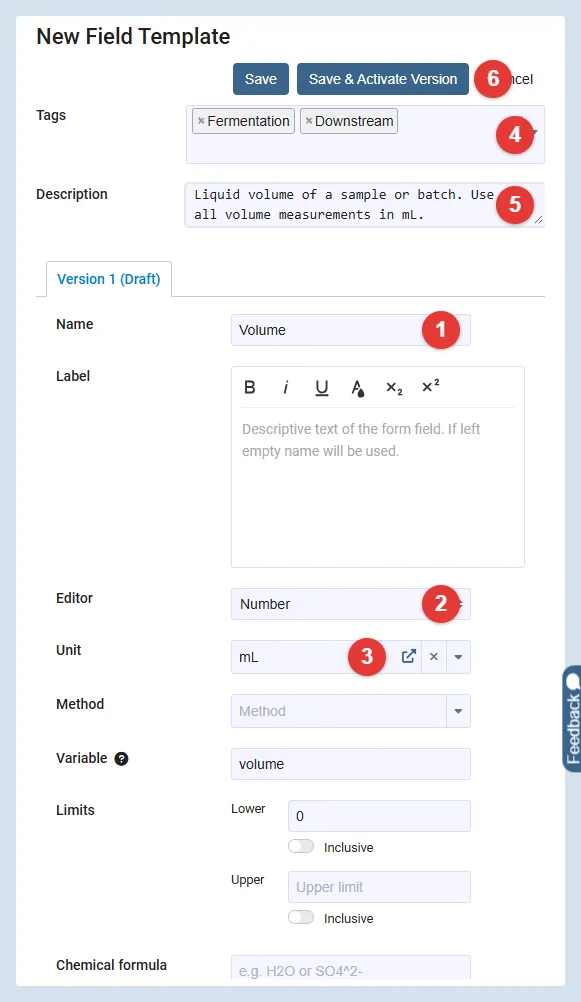
(1) Name, (2) Editor, (3) Unit, (4) Tags, (5) Description, (6) save and release in one step.
Actions on a version
Section titled “Actions on a version”| Button | Available when | Effect |
|---|---|---|
| Save | The version is a Draft and has unsaved changes | Saves the Draft. The template stays as it was. |
| Activate Version | The version is a saved Draft with no errors | Releases the version. A previously Active version is retired automatically. The template name is updated to the name in the version. |
| Save & Activate Version | The version is a Draft with unsaved changes | Save followed by Activate Version. |
| New Version | No Draft exists | Creates a new Draft, copied from the highest existing version. Works also when all versions are retired. |
| Retire | The version is Active | Retires the version. The template disappears from the catalog picker until a new version is activated. |
| Cancel | There are unsaved changes | Discards the unsaved changes on the template and the open version. |
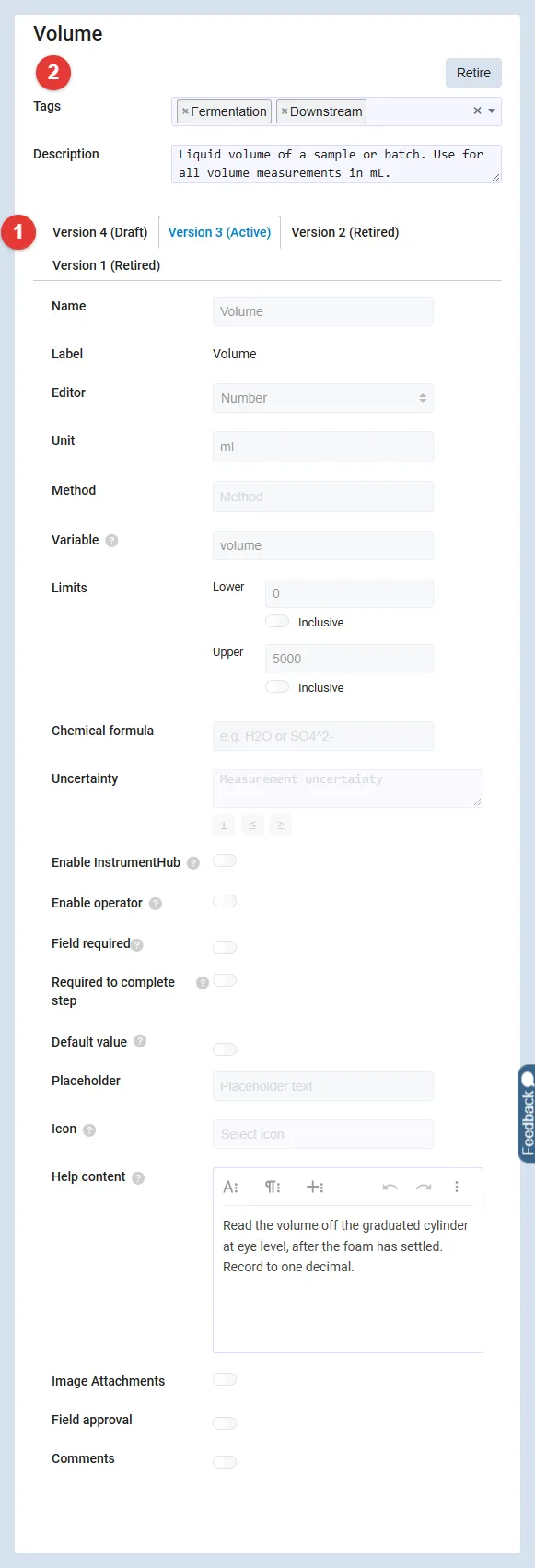
(1) one tab per version, (2) the actions available for the selected version.
Active and Retired versions cannot be edited. To change a released field, click New Version, edit the Draft, and activate it.
Only one Draft can exist per template, so the New Version button is hidden while a Draft exists.
Building the catalog
Section titled “Building the catalog”The catalog pays off when the same measurement is recorded in many procedures and the data is later compared across experiments. Use these recommendations when deciding what to put in and how to fill in each template.
What belongs in the catalog
Section titled “What belongs in the catalog”Good candidates:
- Measured quantities and observations that appear in more than one procedure: volume, pH, temperature, dry weight, OD, yield, purity.
- Anything that is reported or analysed across experiments, including result types used on the analysis overview.
- Standard selections where the same option list is used everywhere, e.g. a “Pass / Fail” field or a colour scale.
- Entity pickers for a standard entity class, e.g. “Instrument used” or “Buffer batch”.
Keep out of the catalog, or create from scratch in the form:
- One-off free text such as remarks and observations that belong to a single step.
- Reference fields. They point to a field in the same experiment and cannot be defined in the catalog.
- Calculation fields whose formula depends on variables that only exist in one procedure. The formula is locked on catalog fields, so a template formula only works if every procedure using it has fields with exactly those variables.
- Fields whose locked settings must differ per procedure, see the next section.
One template per meaning
Section titled “One template per meaning”The template settings that are locked in the ELN are name, editor, data type, unit, method, uncertainty, icon, constant, formula, limits and chemical formula. A procedure cannot change any of them, so a template must fit every place it is used:
- Make one template per quantity, unit and method combination. “Glucose” measured by HPLC and by an enzymatic kit are two templates if the values are not comparable. Set the Method on each so users can tell them apart in the picker, which shows Unit and Method as columns.
- Standardize on one unit per quantity where possible. If two units are genuinely needed, create two templates and make the names distinct, since the name is locked and the picker does not show the description.
- Set Limits only when they hold everywhere: physical bounds such as pH 0 to 14 or a percentage 0 to 100. Procedure-specific acceptance criteria do not belong on a shared template, because the procedure cannot override them. If a criterion is needed, create a dedicated template for that use, e.g. “Purity, release criterion”.
- Set Uncertainty and Chemical formula when they are a property of the measurement itself, not of the procedure.
- Use the Icon consistently, e.g. the same icon for all temperature fields, so users recognise the field type in the form.
Fill in the template completely
Section titled “Fill in the template completely”All settings are copied into the field when a user picks the template, also the ones the procedure is allowed to change afterwards. The template is therefore the default for every procedure, and a complete template saves work in every form:
- Help text: describe how the value is measured or where it is read off. This is what the user in the ELN sees; the template description is only shown in the catalog.
- Variable: give every numeric template a variable that follows the Variable rules. Users only need to change it when a procedure uses the template twice.
- Default value, placeholder, decimal places, select options: fill in sensible defaults. Procedures can adjust them.
- Required and Required to complete step: set them only if the field must be filled in everywhere it is used. Procedures can switch them on where needed.
- Description on the template: state the purpose and when to use this template rather than a similar one. It is shown in the catalog list for administrators and helps keep duplicates out.
- Tags: tag by department, assay, instrument or process area. Tags are shown and filterable in the picker, so they are the main way users narrow down a large catalog. Decide on a small set of tags up front and reuse them.
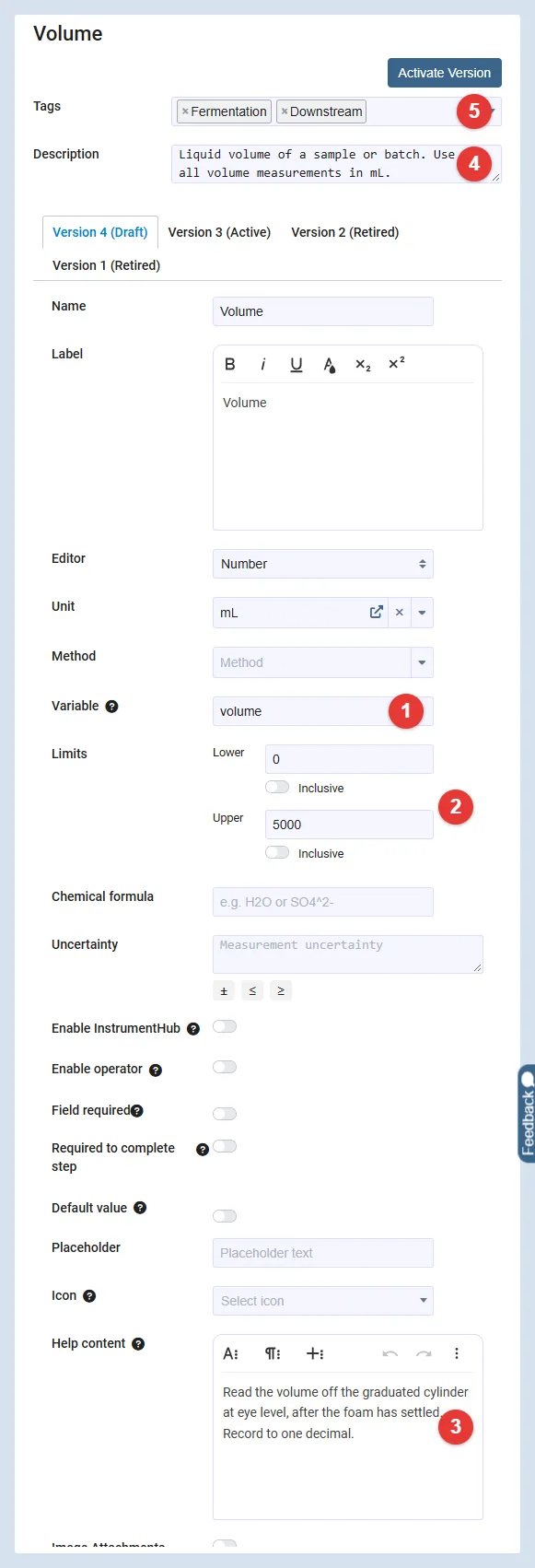
(1) Variable, (2) Limits, (3) Help content, (4) Description, (5) Tags.
Working in steps
Section titled “Working in steps”- Start with the fields that appear most often across your procedures. Add more as new procedures are written.
- Involve the people who write procedures. They know which fields are the same measurement under different names today.
- Review a Draft together before activating it. An Active version is read-only; a correction requires a new version and an update in every form that should follow it.
- Retire the Active version of a template that is superseded. It disappears from the picker, while fields already created from it keep working and stay traceable to the template.
When to make a new version and when to make a new template
Section titled “When to make a new version and when to make a new template”- New version: the meaning is unchanged but a setting needs correcting or tightening, e.g. a missing unit, a new icon, adjusted physical limits. Fields in existing procedures show that the new version is available and can be updated after a preview.
- New template: the meaning changes, e.g. a different quantity, unit or method. Updating a field to such a version can overwrite or clear values that were already recorded, and old and new values would no longer be comparable.
Naming rules
Section titled “Naming rules”There are three names on a field. They serve different purposes and follow different rules.
| Name | Label | Variable | |
|---|---|---|---|
| Purpose | Identifies the field. Shown in lists, exports and the catalog. | Text shown to the user in the form. | Handle for using the value in calculations. |
| Required | Yes | No. Falls back to the name when empty. | No. Only needed if the field takes part in a calculation. |
| Formatting | Plain text, max 100 characters | Rich text (bold, links, etc.) | Strict, see below |
| Uniqueness | Must be unique among the fields of the step in the ELN. Not enforced in the catalog. | Not enforced | Must be unique among all fields in the experiment or procedure, regardless of case. |
| Locked on catalog fields | Yes | No | No |
Rules enforced by Scifeon:
- Required.
- At most 100 characters.
- In a form, no other field in the same step can have the same name. The comparison ignores case, so “pH” and “PH” count as the same name.
The catalog itself does not stop two templates from having the same name, so keep template names unique by convention. Two templates called “Volume” will be indistinguishable in the picker except by their tags, unit and description.
Recommendations:
- Use short, descriptive nouns: “Volume”, “Dry weight”, “OD600”, “Incubation temperature”.
- Put the measured quantity first, then a qualifier if needed: “Temperature, start”, “Temperature, end”. This keeps related fields together when sorted.
- Do not put the unit in the name. The unit is a separate setting on the template and is shown next to the value.
- Do not encode the procedure or step in the name. A template is meant to be reused across procedures.
- Use the label for anything that is only for display, such as formatting or extra explanation.
The label is what users see above the field. If left empty, the name is used. It supports basic formatting, so it can carry things a plain name cannot, such as a subscript in “OD600” or a short instruction.
The label is not locked on catalog fields, so a procedure can show its own wording for a catalog field without changing the field itself.
Variable
Section titled “Variable”The variable is the identifier used in Calculation formulas, e.g. AVERAGE(od_start, od_end). It follows the rules for named expressions in the spreadsheet engine behind calculations, plus two Scifeon-specific restrictions.
Allowed:
- First character: a letter (A-Z, a-z, or letters such as æ, ø, å, ä, ö, ü) or an underscore
_. - Following characters: letters, digits
0-9, underscore_and period..
Not allowed:
- Spaces, hyphens and other punctuation:
my Revenue,od-600,volume(mL). - Starting with a digit:
1stQuarter,600od. - Anything that starts with letters immediately followed by digits, because it would be read as a spreadsheet cell reference:
A1,OD600,UF2_buffer,pH7_start. Put an underscore or another letter between them instead:OD_600,UF_2_buffer,pH_7_start,odSix. - Names of the form R1C1 (letter R, optional digits, letter C, optional digits):
R1C1,RC,r2c. - The reserved word
_index. - A variable already used by another field in the same experiment or procedure. Case is ignored, so
Volumeandvolumecollide.
Examples:
| Variable | Valid | Why |
|---|---|---|
volume | Yes | |
dry_weight | Yes | |
_1stQuarter | Yes | Starts with underscore |
od_600 | Yes | Underscore separates letters and digits |
temp.start | Yes | Period is allowed after the first character |
OD600 | No | Letters followed by digits at the start look like a cell reference |
1st_read | No | Starts with a digit |
dry weight | No | Contains a space |
dry-weight | No | Contains a hyphen |
R1C1 | No | R1C1 cell reference |
_index | No | Reserved |
The field editor validates the variable as you type and shows the reason when it is rejected.
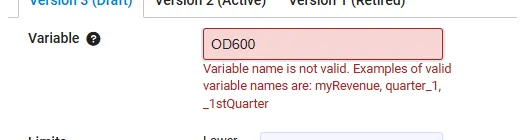
Recommendations:
- Use lowercase with underscores:
volume_start,volume_end,dry_weight. It avoids case collisions and reads well in formulas. - Keep the variable close to the name so formulas stay readable: a field named “Dry weight” gets
dry_weight. - Keep variables short. They are typed by hand in formulas.
- Give a variable to every numeric template you expect to be used in calculations. The variable stays editable in each form, so a procedure that uses the template twice can rename one of them to avoid a collision.
Using catalog fields in the ELN
Section titled “Using catalog fields in the ELN”When a user clicks Create new field in a form, the dialog first shows the catalog. Only templates with an Active version are listed. The user can:
- Search and select a template. The field opens pre-filled from the Active version of the template, ready to be saved into the form.
- Click Create New Field to define a field from scratch, as before. Such fields have no link to the catalog.
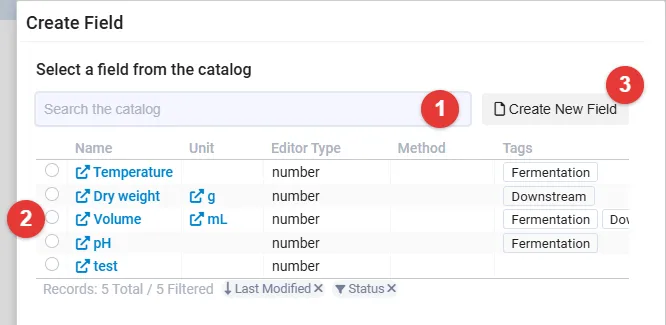
(1) search the catalog, (2) pick a field template, (3) define a field from scratch instead.
The list settings (visible columns, filters) can be saved and are shared between the create-field dialog and the result definitions dialog.
What is locked
Section titled “What is locked”A field created from a template keeps these settings locked to the template:
- Name
- Editor type and data type
- Unit and method
- Uncertainty
- Icon
- Constant value
- Calculation formula
- Limits
- Chemical formula
Everything else belongs to the form and can be changed per field: label, variable, help text, placeholder, default value, select options, decimal places, required flags, comments, approval and image attachments.
The variable is deliberately not locked, so the same template can be used several times in one experiment with different variables.
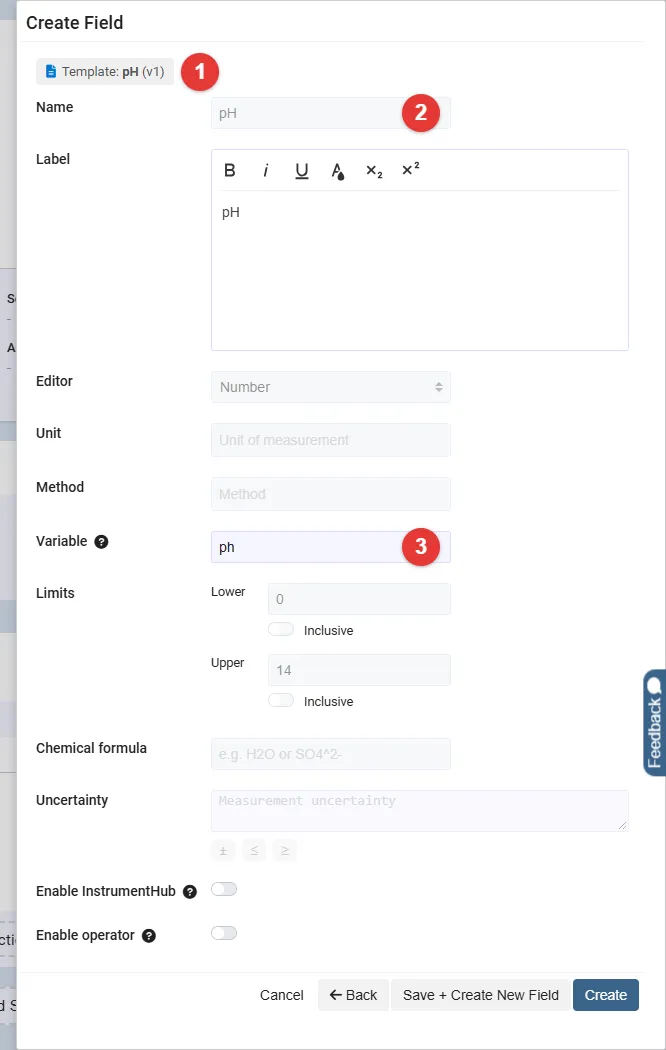
(1) the template and version the field comes from, (2) Name is locked by the template, (3) Variable stays editable.
Template versions in the ELN
Section titled “Template versions in the ELN”In the field editor, a badge shows which template and version the field is based on, e.g. “Template: pH (v1)”.
When a newer version of the template is activated, the field is not changed automatically. Instead:
- In configure mode, the field shows Template vn available, naming the released version.
- Clicking it, or the update button in the field editor, opens a preview that lists each locked setting with its current value and the value after the update.
- If the field already holds recorded values and the update changes something that affects them (for example the unit or the data type), the preview warns that those values will be overwritten or cleared and must be entered again.
- Settings owned by the form (label, variable, default value, required flags) are never touched by the update.

(1) the badge shown when a newer version of the template has been released.
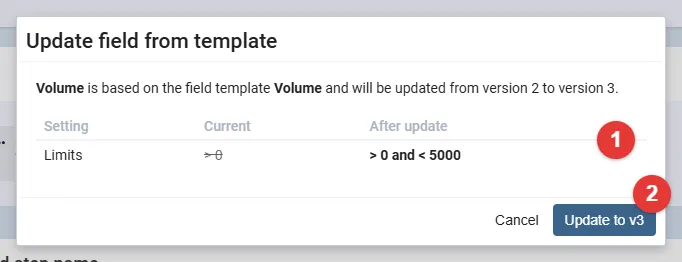
(1) what the update changes, (2) confirm the update.
Confirm to switch the field to the new version, or cancel to keep the current one.
Result types
Section titled “Result types”Result definitions on the analysis overview of an experiment can also be added from the catalog. Choose one or more templates and click Add results. This replaces typing a free-text result type and keeps result types consistent across experiments.
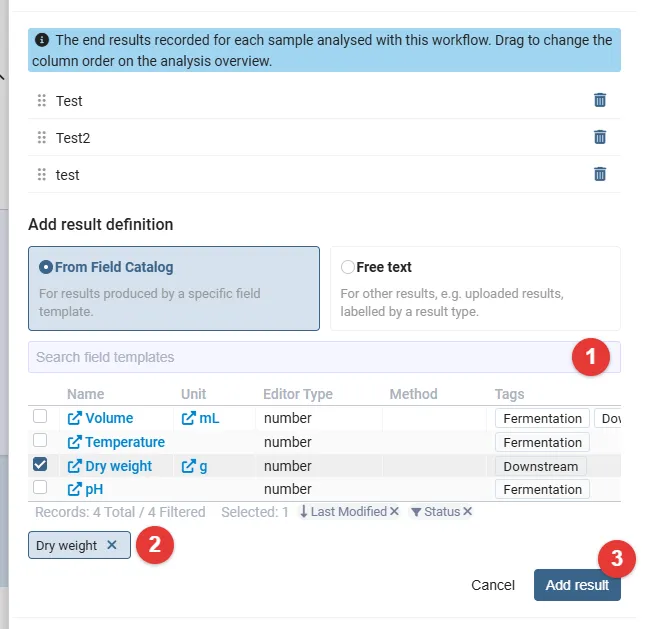
(1) search the catalog, (2) the selected template, (3) add it as a result definition.
Permissions
Section titled “Permissions”A single permission controls the catalog:
| Permission | Group | Grants |
|---|---|---|
| Manage Field Catalog | Datamodel | Seeing the Field Catalog menu entry on the Administration page, and creating, editing, activating and retiring templates and versions. Also enables the Field Catalog update set for export and import. |
Assign it to a role under Administration -> User Roles. All users can read the catalog, so no permission is needed to pick a catalog field in the ELN.
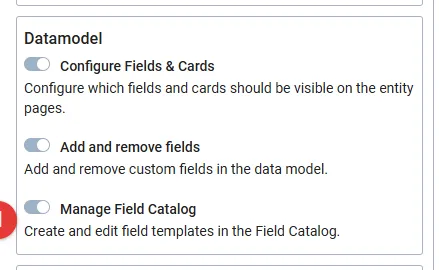
(1) the Manage Field Catalog permission, under Datamodel.
Moving the catalog between instances
Section titled “Moving the catalog between instances”Templates can be exported from one instance and imported into another (for example from test to production) with the Field Catalog update set under Administration. The export contains the templates with their current version and the units and methods they refer to. On import you choose:
- Update Duplicates: whether units and methods that already exist on the target with the same name are updated with the imported values.
- Update Conflicts: whether previously imported entities that have since been edited on the target are overridden.
- Release Immediately: imported versions are normally added as Drafts. With this option they become Active right away and the currently active version on the target is retired.
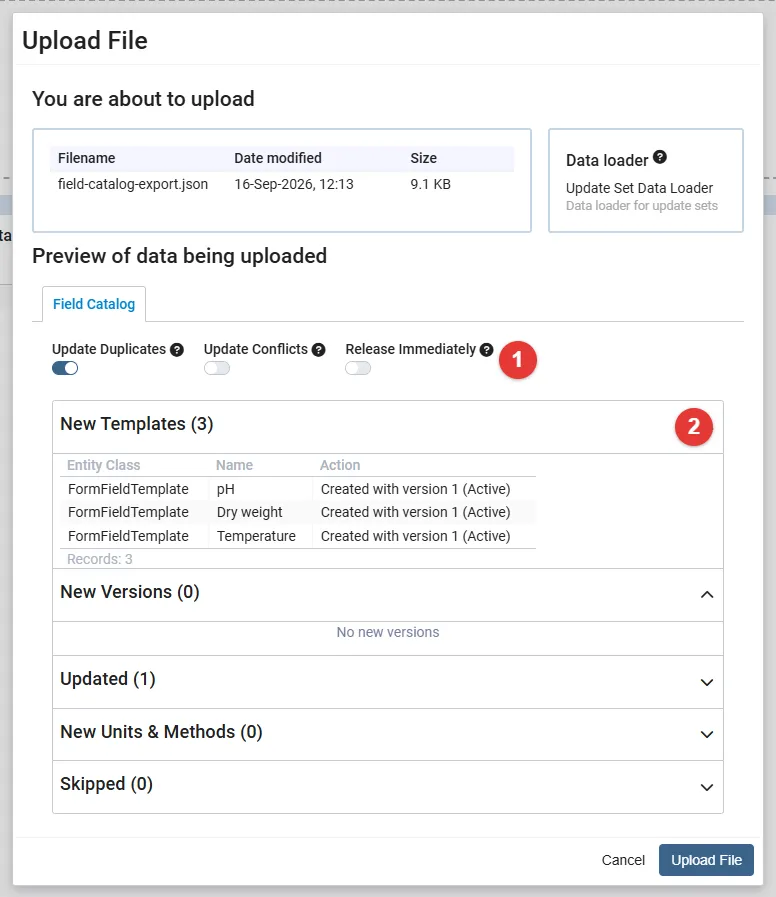
(1) the import options, (2) a preview of what the import will create and change.
The update set requires the Manage Field Catalog permission on both instances.